To streamline student access, ePlatform allows you to group students into Classes. This is the foundation of our Book Assignment feature, which enables teachers to push specific titles such as eBooks, Audiobooks, and Decodable or Levelled Readers directly to a student's "Loans" shelf.
Video Tutorial
We have created comprehensive video playlists to guide you through every feature. Whether you need a quick "how-to" on a specific topic or a full walkthrough, these are great resources to have on file.
Overview
The Classes management feature is an administrative tool that helps teachers organise their students for personalised learning.
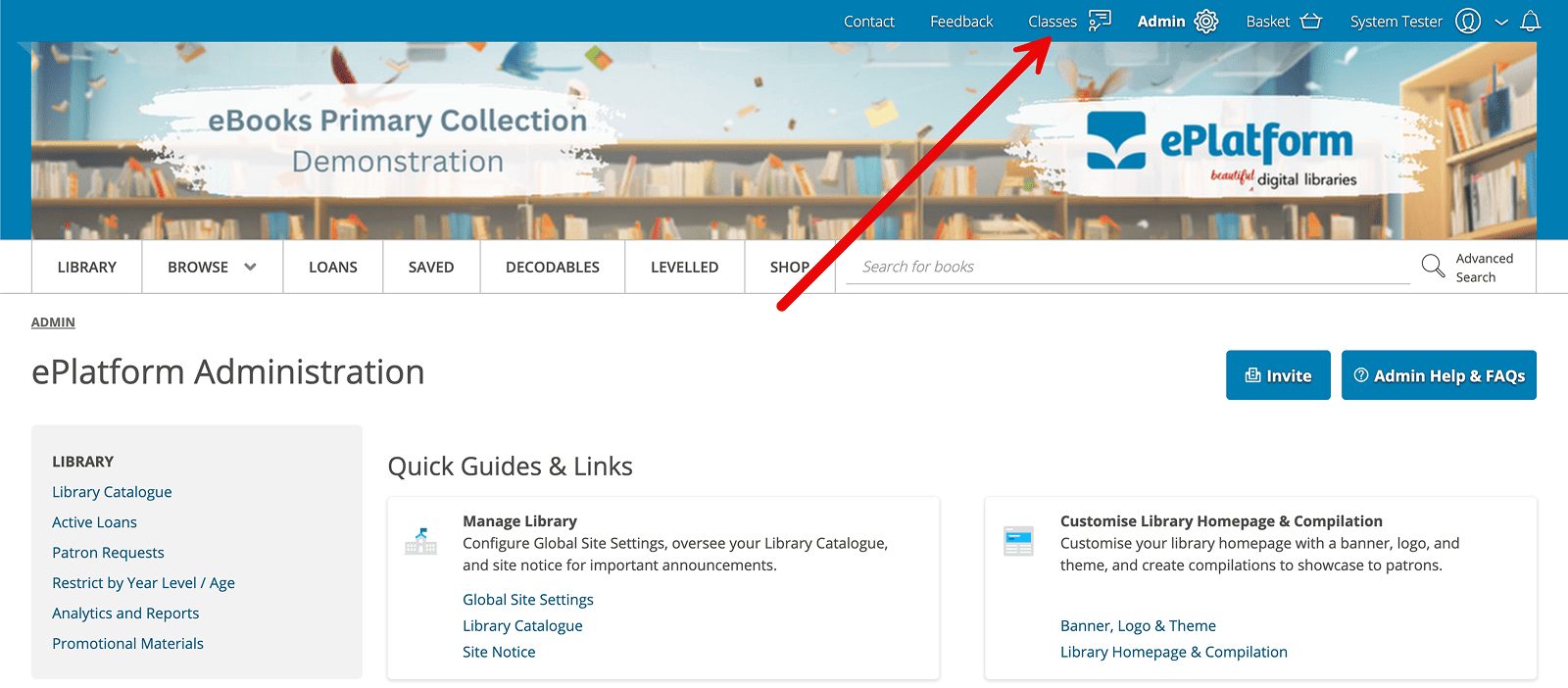
Creating a New Class
To create a new class, follow the steps below:
Step 1: Create Class
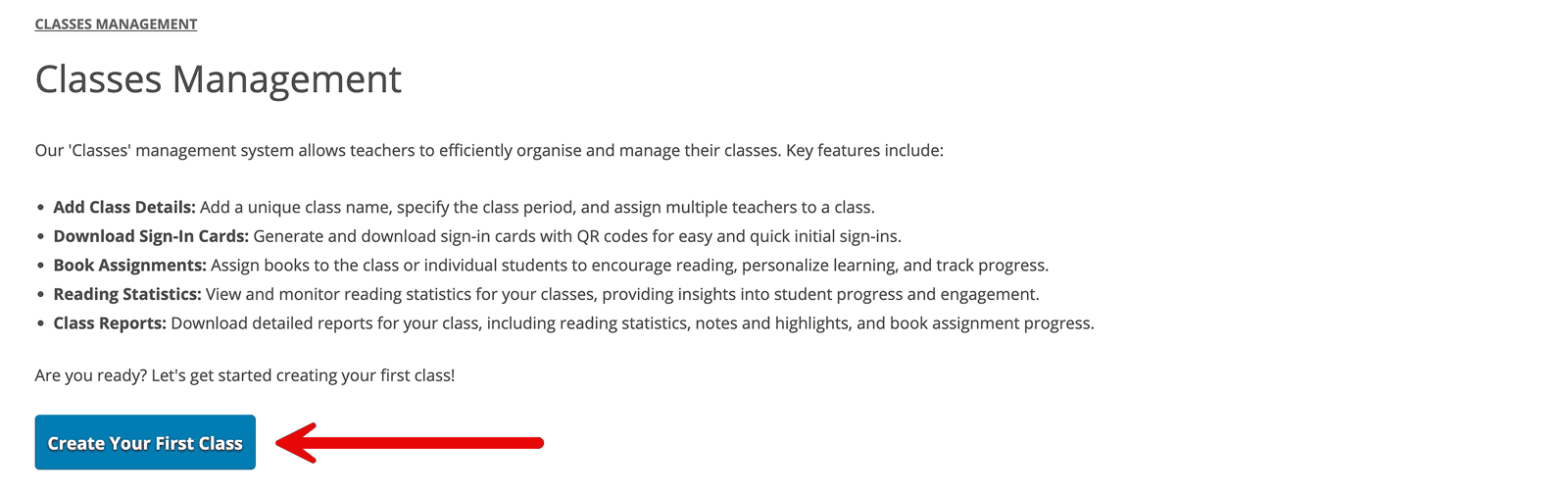
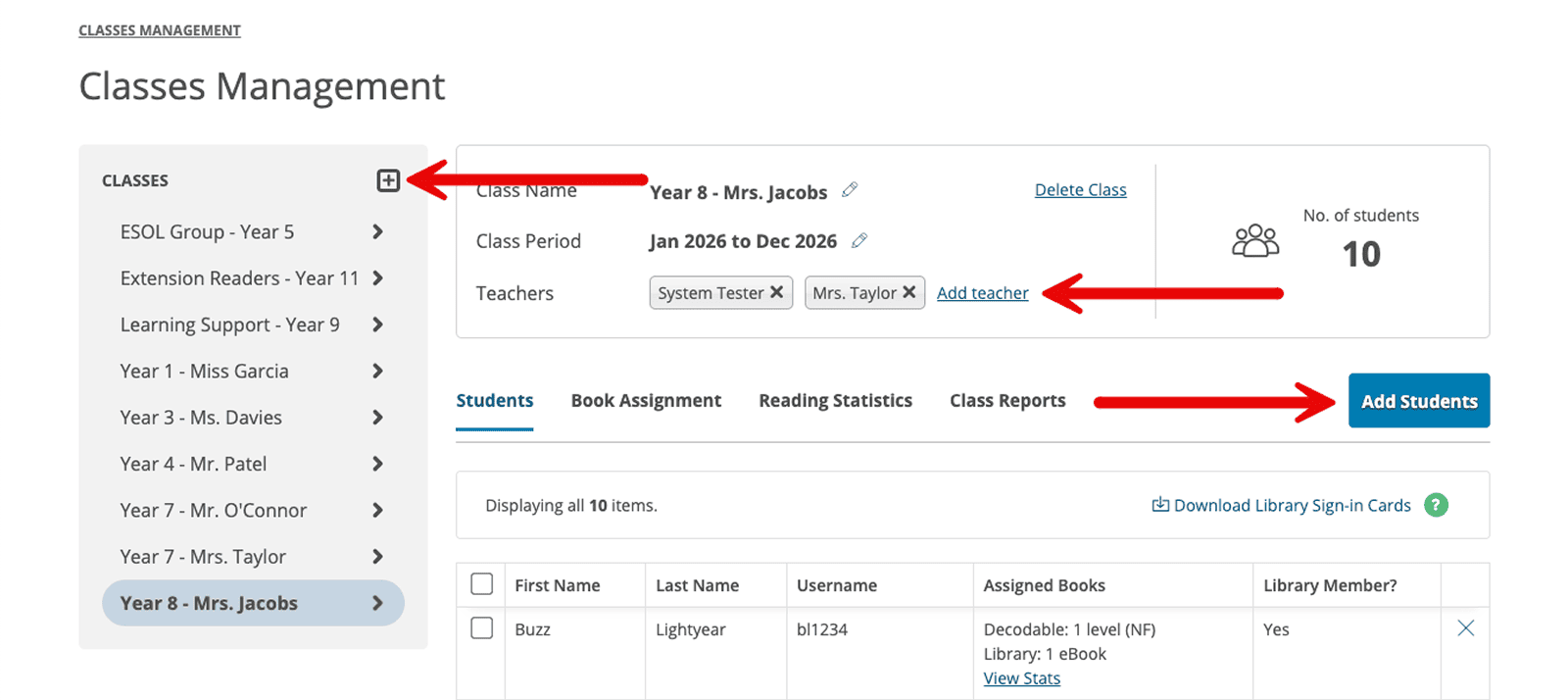
If your portal is brand new, click the blue "Create Your First Class button. If it already exists, click the icon at the top of the left-hand sidebar to create a new one.
Step 2: Add Students
You can add students manually by typing names (with usernames auto-generated for new members) or by bulk uploading from an Excel file. CSV, or Text file, ensuring the first column is titled "Barcode" or import from existing patrons by filtering for specific Year Levels or Categories to instantly add matching students.
Step 3: Add Teachers
Click the "Add teacher link to search for and select staff members one by one. You can add multiple teachers (such as substitutes or assistants), but if a name doesn't appear, a system administrator must first ensure they are assigned a staff code through the main admin area.
Assigning Books to Students
The Book Assignment feature enables students to have immediate access to the correct reading material by pushing titles directly to their "Loans" screen. All assigned books appear instantly on the student's screen. If a book is unavailable, it will be placed on immediate reserve. We recommend purchasing Class Set copies to ensure there is sufficient availability for every student to borrow the title at the same time.
How to Assign Decodable or Levelled Readers.
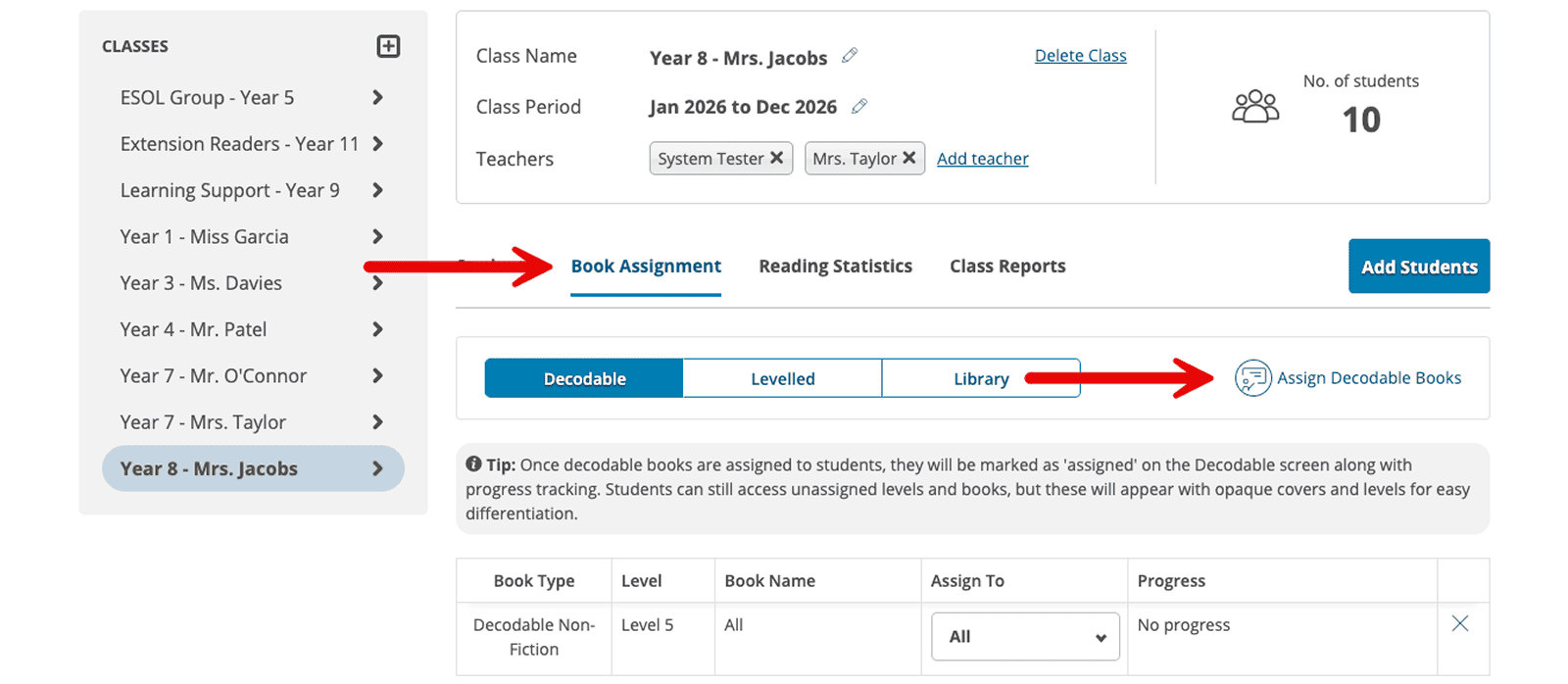
Within your selected class, navigate to the Book Assignment tab and click the "Assign Decodables" or "Assign Levelled Books" link. This opens a pop-up where you can select the series (Fiction or Non-Fiction), the level number, and the specific book, e.g., Book 41. You can then tick boxes for individual students and select "All to assign the title to them.
How to Assign eBooks or Audiobooks
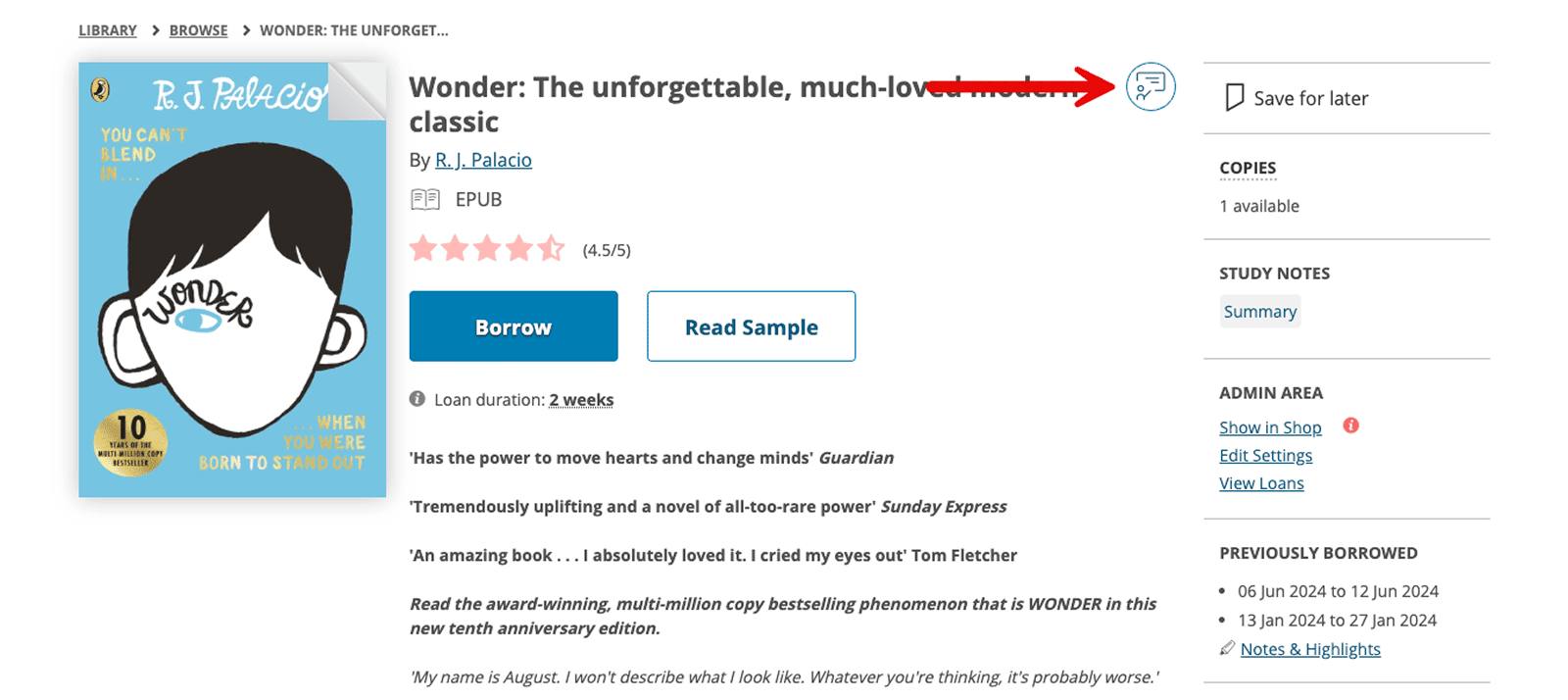
To assign a library book, browse your collection, search for a specific title and navigate to its detail screen. Click the "Assign Book" icon at the top left, then click the icon in the pop-up to select the relevant class and specific students.
Student Reading Statistics
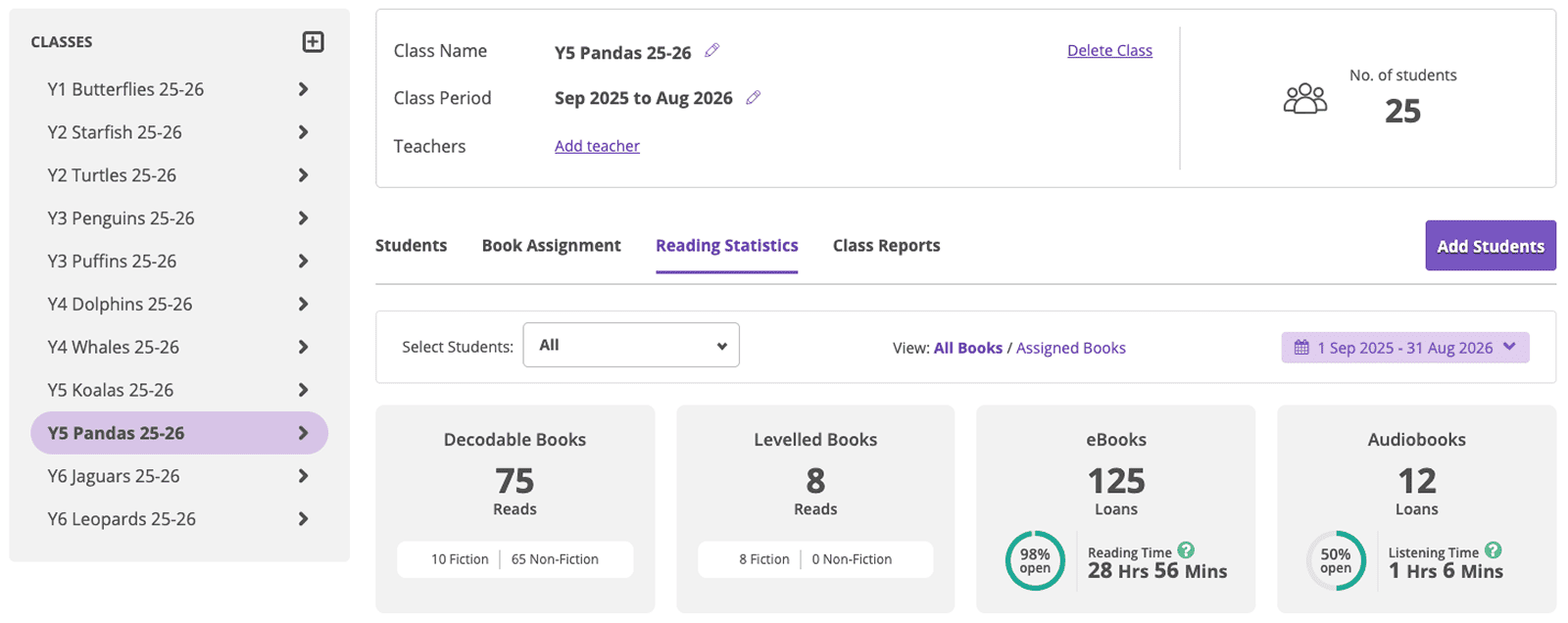
The leading Statistics tab provides a visual breakdown of student engagement across all reading collections. Teachers can use the filter section to refine the data by selecting specific students, toggling between All Books or Assigned Books, and setting a specific date range.
- Engagement Overview: The dashboard displays three summary charts showing total Reads for Decodable and Levelled books split by Fiction/Non-Fiction and Total Loans for standard eBooks/Audiobooks, including an average Reading Time metric.
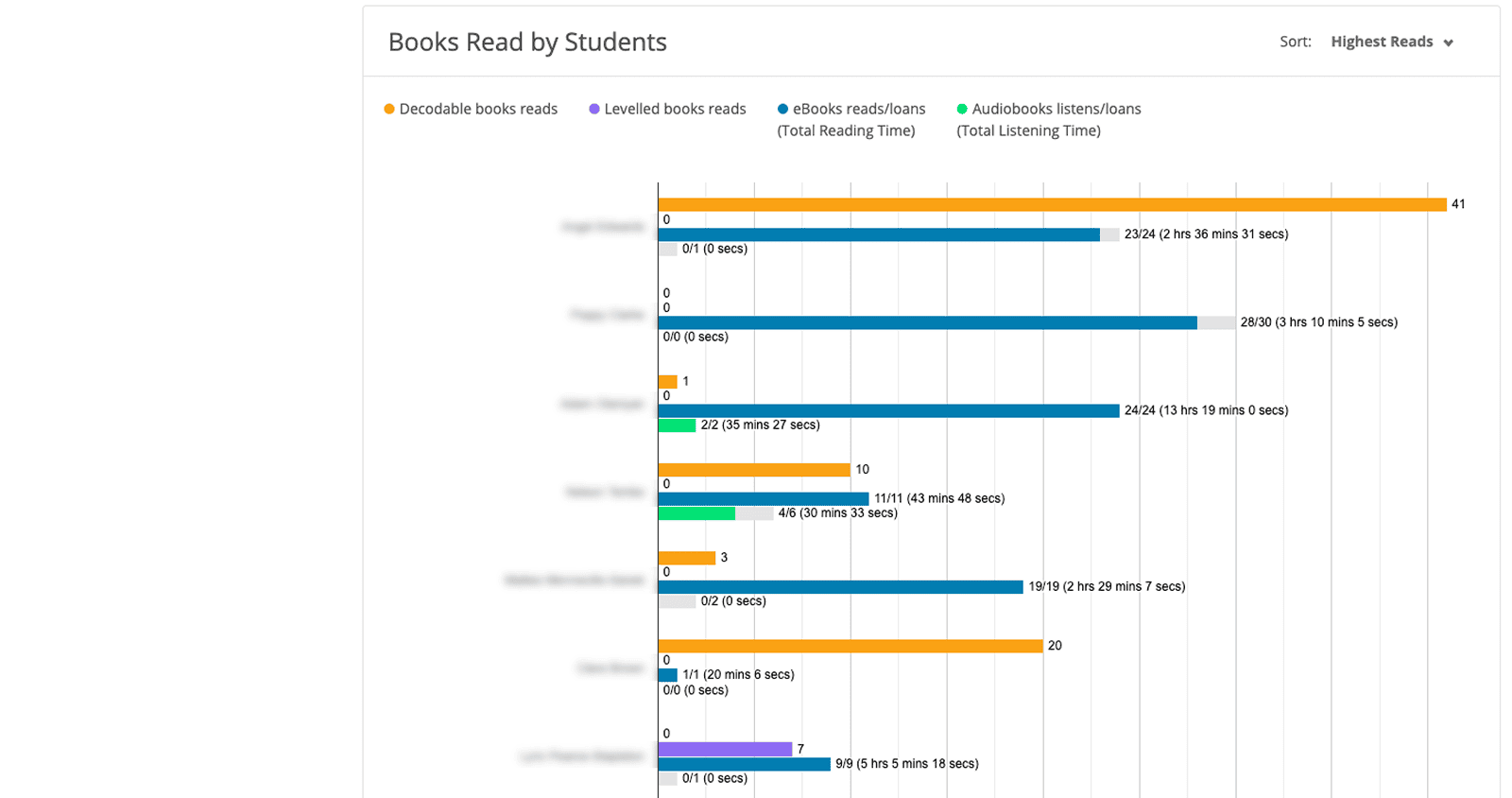
- Books Read by Students: This comprehensive bar chart visualises individual student activity, colour-coded by collection type. It displays exactly how many books each student has read and tracks their total reading time in minutes and seconds.
- Sorting Capabilities: To identify different levels of engagement, the chart can be sorted by Highest Reads, Lowest Reads, or alphabetically by Student Name.
Class Reports
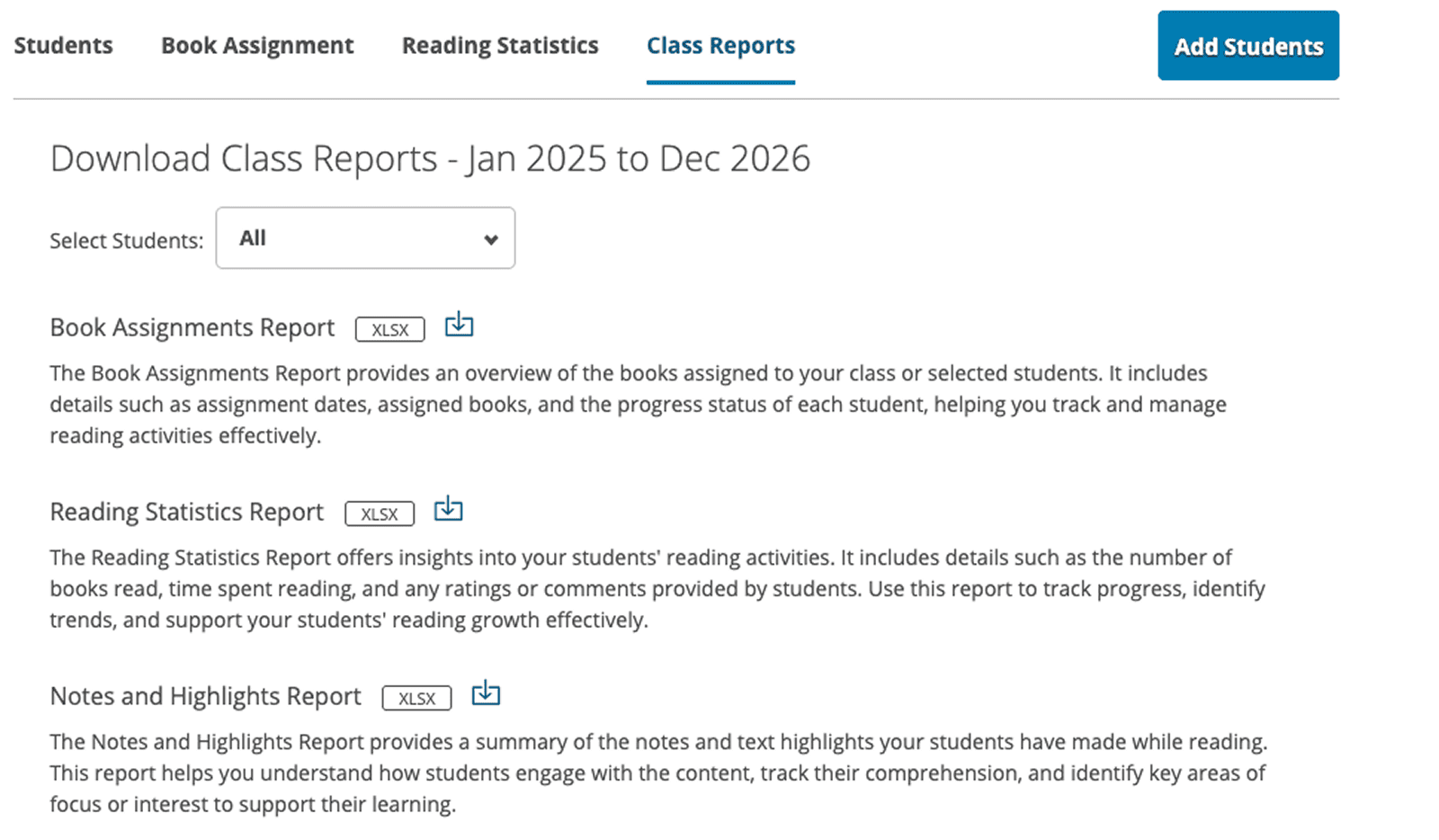
The Class Reports tab functions similarly to advanced reports for eBooks and Audiobooks, allowing you to generate and download granular data for your selected Students in Excel (xlsx) format.
- Book Assignments Report: Provides a detailed overview of assigned titles, including assignment dates and the specific progress status for each student.
- Reading Statistics Report: Offers deep insights into reading activity, including the exact number of books read, time spent in-app, and any ratings or comments submitted by the students.
- Notes and Highlights Report: Summarises all highlights and detailed notes made by students while reading, helping students track comprehension and identify specific areas of interest.
Frequently Asked Questions
What happens if I assign a book but there are no copies available?
If you assign a standard eBook or Audiobook and all copies are currently on loan, the title will be placed on immediate reserve for those students. To ensure a whole class can start reading simultaneously without waiting, we recommend purchasing a Class Set Booking for that title.
Do assigned books count towards a student's standard loan limit?
An assigned book only counts towards a student's loan limit once it has been successfully borrowed and appears as an active loan. If a book is assigned but is currently unavailable, it will sit as a reserve and will not count towards their loan limit until a copy becomes available and the loan begins. Note: SuperLit Decodable Readers are the exception; they have unlimited simultaneous use and never impact standard loan limits.
Can I assign the same book to multiple classes at once?
Yes. You can navigate to the title's detail page and use the "Assign Book" tool to select multiple classes or groups of students. This is perfect for shared year-level texts or cross-class book clubs.
Can a student "return" an assigned book early?
Yes, students can return an assigned book just like any other loan once they have finished reading it. If they return it by mistake, you can simply assign it to them again from the Classes dashboard.
What is the benefit of the "Notes and Highlights Report" for teachers?
This report shows the actual annotations, thoughts, and questions students have recorded while reading. It is a powerful tool for formative assessment, allowing you to check comprehension and see how students are engaging with the text without physically collecting their devices.
Why can't I find a specific teacher to add to my class?
To be added as a teacher to a class, the user must first have a Staff role assigned to their account in the main Patron/Admin area. If they don't appear in your search, please ask your school's ePlatform Administrator to verify their account status.
Do assignments work for both the Web Portal and the Mobile App?
Absolutely. As soon as you click "Assign," the book will appear on the student's "Loans" shelf regardless of whether they are logged in via a web browser or using the ePlatform app on a tablet or phone.