Homepage Collection Tiles
The collection tiles on your ePlatform homepage help students browse key areas of your library, such as Decodables, Levelled Readers, Fiction and Non-Fiction.
Schools can now customise which collection tiles appear, choose the images used, set multiple images to rotate, and drag and drop tiles into the order they prefer.
These settings are available from Library Homepage and Compilation.
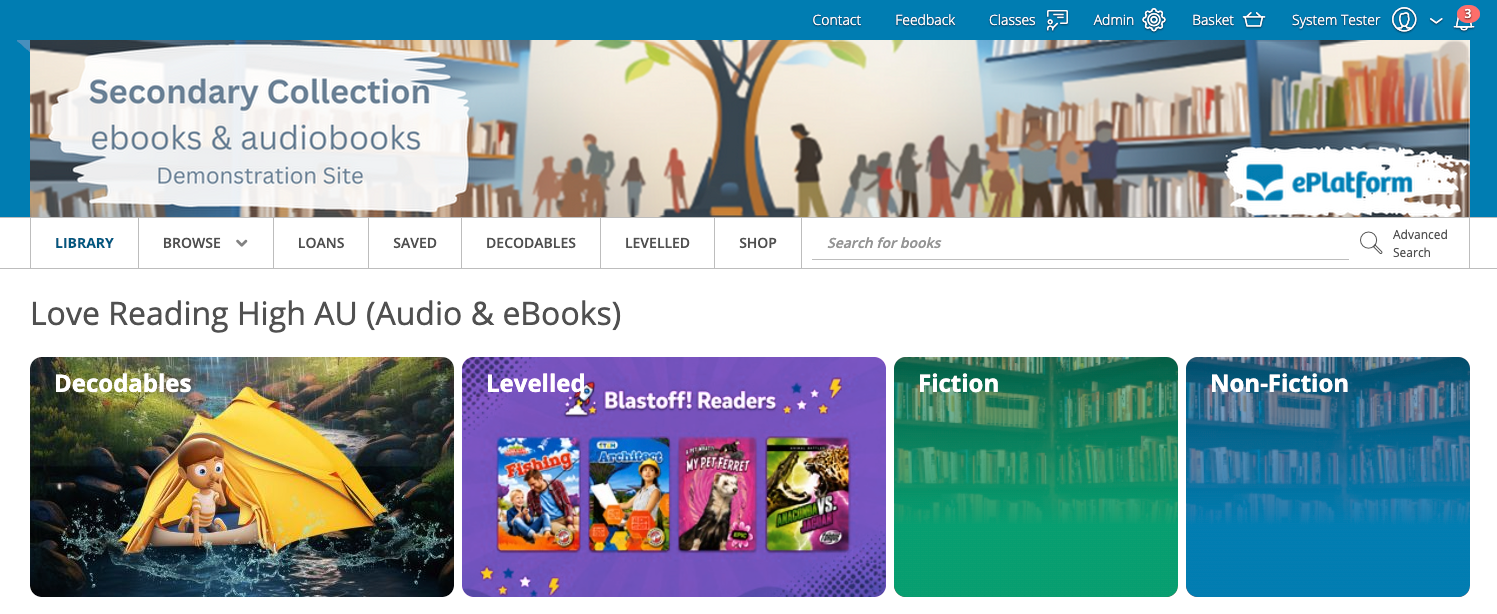
Accessing Homepage Collection Tile Settings
To edit your homepage collection tiles:
- Log in to your ePlatform admin account.
- Go to Admin.
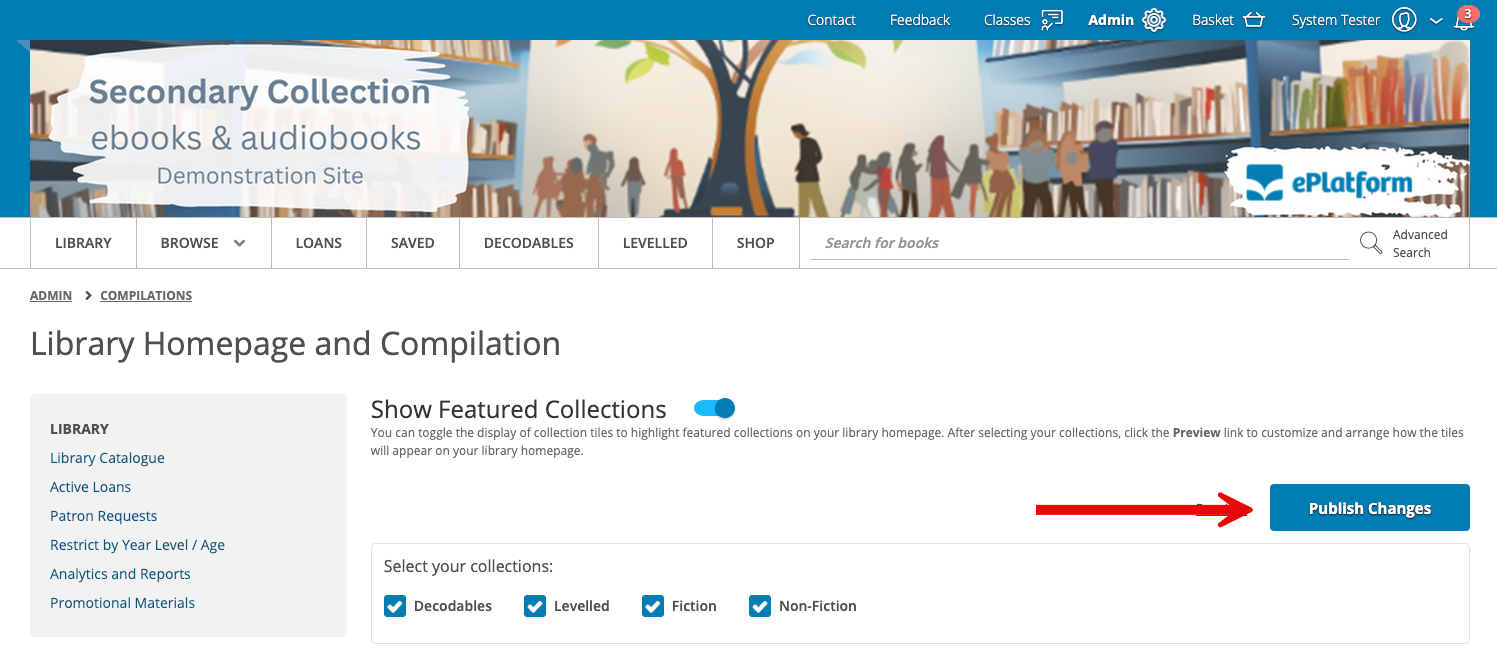
- Select Library Homepage and Compilation.
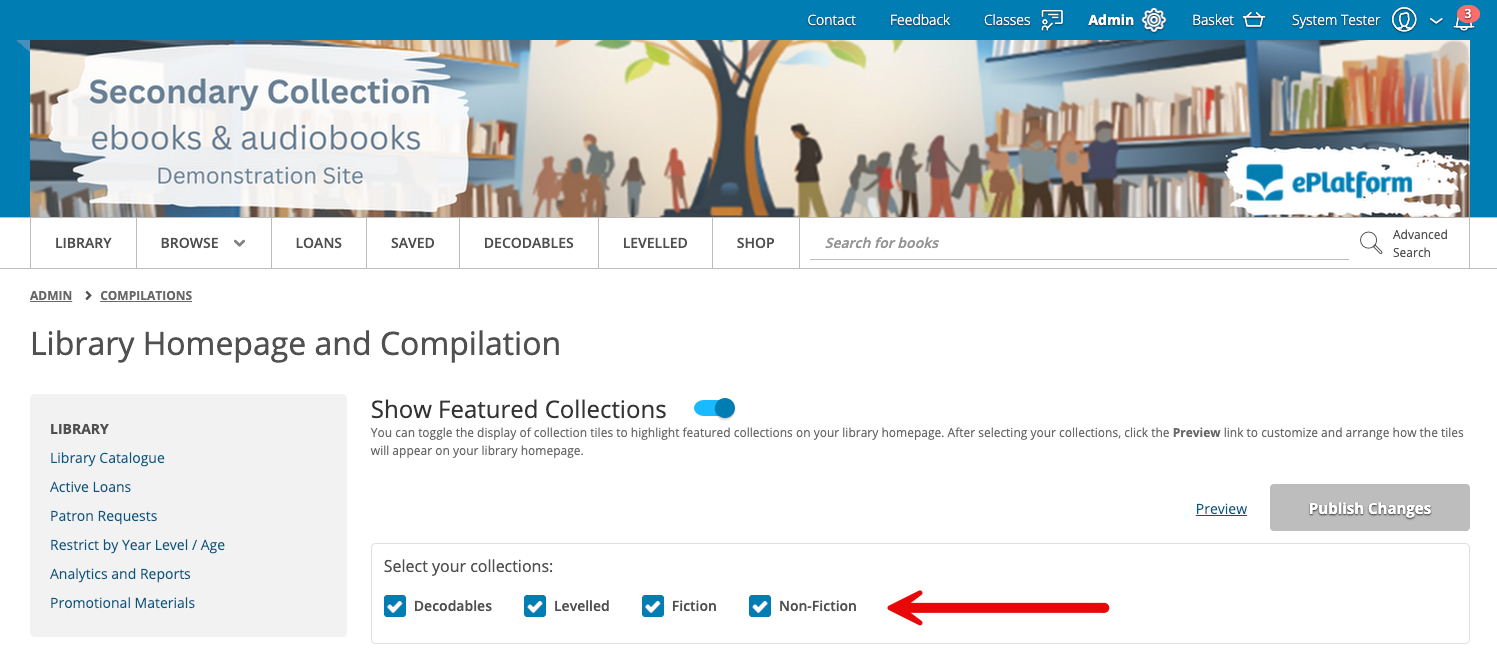
Choose Which Collection Tiles Are Shown
Use the tick boxes to choose which collection tiles appear on your homepage.
This allows your school to display only the collections that are most relevant to your students. For example, a secondary school may choose to hide younger-looking collections, while a primary school may choose to highlight Decodables or Levelled Readers.
Customise Collection Tiles
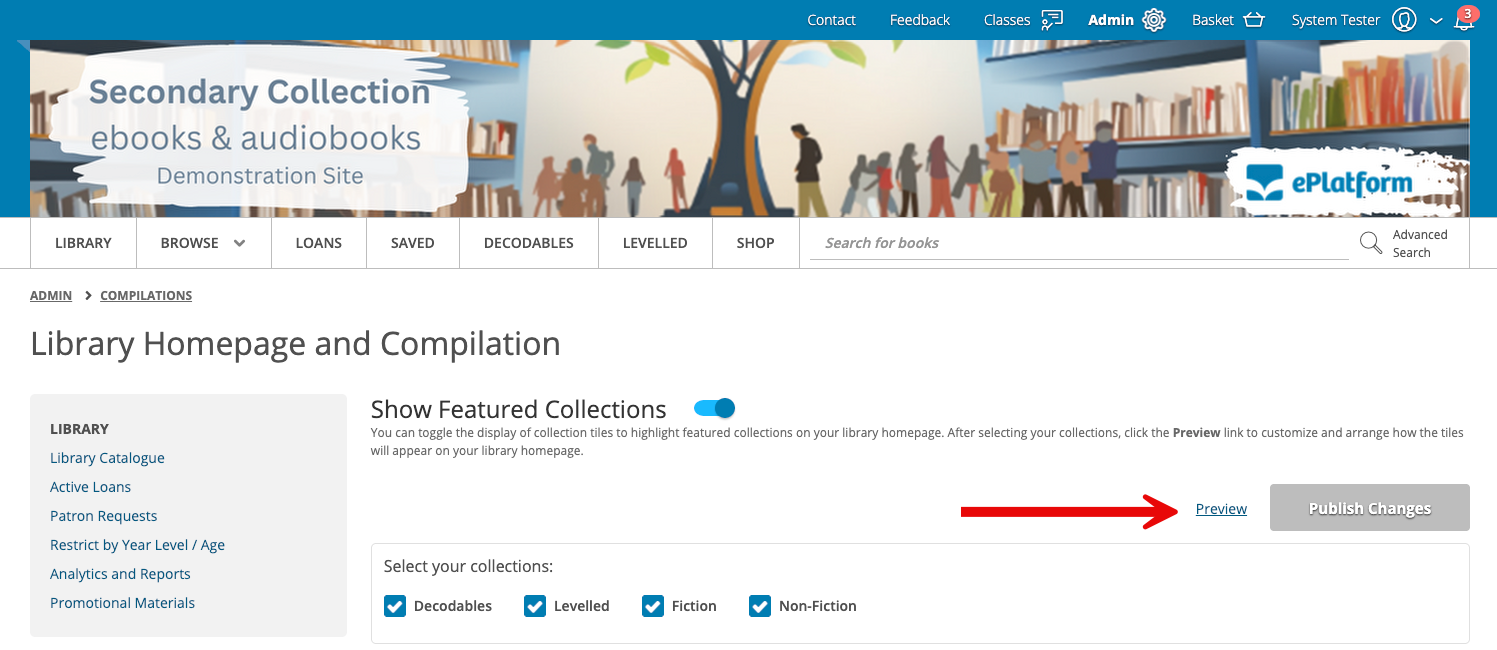
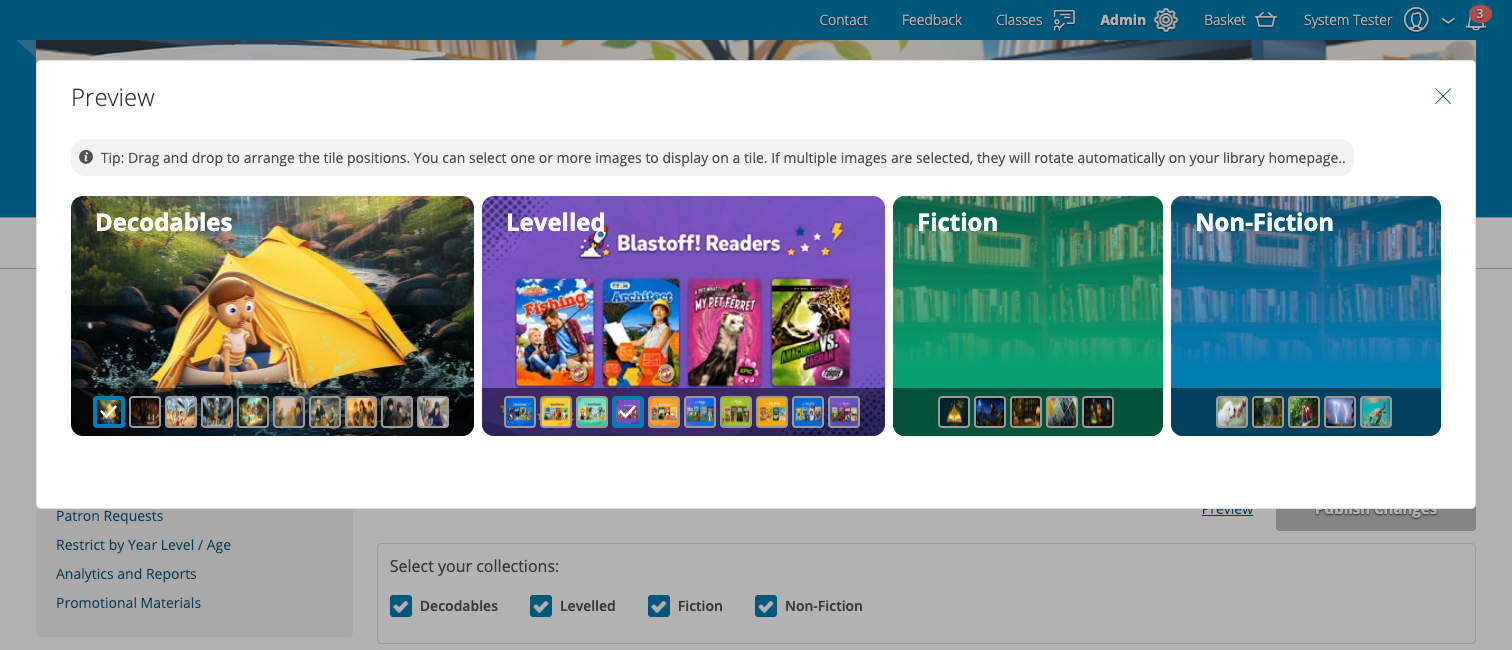
Once you have selected which collection tiles you would like to display, click the Preview link to customise how the tiles will appear on your library homepage.
From the preview window, you can:
- Select images for each tile: Each collection tile will show a range of available image options. Select the image or images you would like to use.
- Set image rotation: If only one image is selected, that image will always appear. If multiple images are selected, they will rotate when the homepage is loaded or refreshed.
- Reorder tiles: Drag and drop the collection tiles into the order you prefer.
Save Your Changes
Once you have chosen your collections, selected images, and reordered the tiles, make sure to Publish your changes.
After clicking "Publish Changes", visit your homepage to check how the collection tiles appear to students.
Coming Soon: Upload Your Own Images
In the coming months, schools will also be able to upload their own tile images.
This will make it even easier to personalise your homepage and create a library experience that reflects your school.
Frequently Asked Questions
Can we choose which collection tiles appear on our homepage?
Yes. You can use the tick boxes in Admin > Library Homepage and Compilation to choose which collection tiles are displayed.
Can we change the images used for each collection tile?
Yes. You can select from the available image options for each collection tile.
Can we use more than one image for a collection tile?
Yes. If you select multiple images, they will rotate when the homepage loads or is refreshed.
Can we change the order of the collection tiles?
Yes. You can drag and drop the collection tiles into the order you prefer.
Can we upload our own images?
Not yet, but this feature is coming soon. In the coming months, schools will be able to upload their own images for homepage collection tiles.
Who can update the homepage collection tiles?
Homepage collection tiles can be updated by users with the appropriate admin access.