Creating Homepage Compilations
ePlatform allows you to curate the book carousels (compilations) displayed on your library homepage to showcase specific genres, seasonal reads, or teacher recommendations. This is the best way to guide student discovery and highlight specific content to keep your library looking fresh.
Video Tutorial
We have created comprehensive video playlists to guide you through every feature. Whether you need a quick "hows on a specific topic or a full walkthrough, these are great resources to have on file.
What are Homepage Compilations?
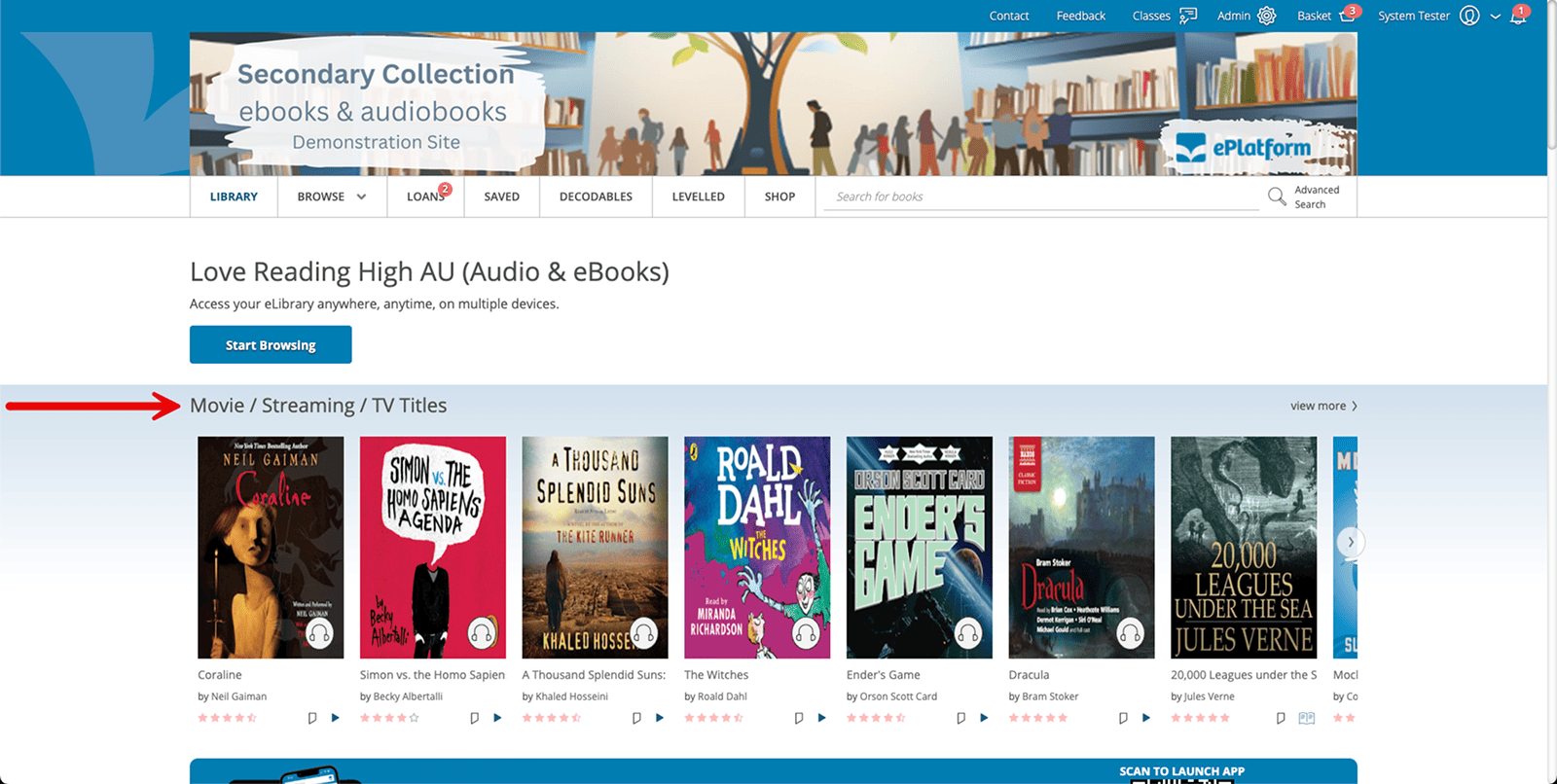
Homepage compilations are the horizontal carousels of books that students see when they view on your library homepage. While ePlatform provides default rows like "Popular Titles" and "Listening Favourites", Admin users can create their own custom compilations and adjust the order in which compilations are displayed. We recommend creating a few custom compilations to help guide students to find their next eBook or Audiobook.
How to Create a New Compilation
Step 1: Add Compilation
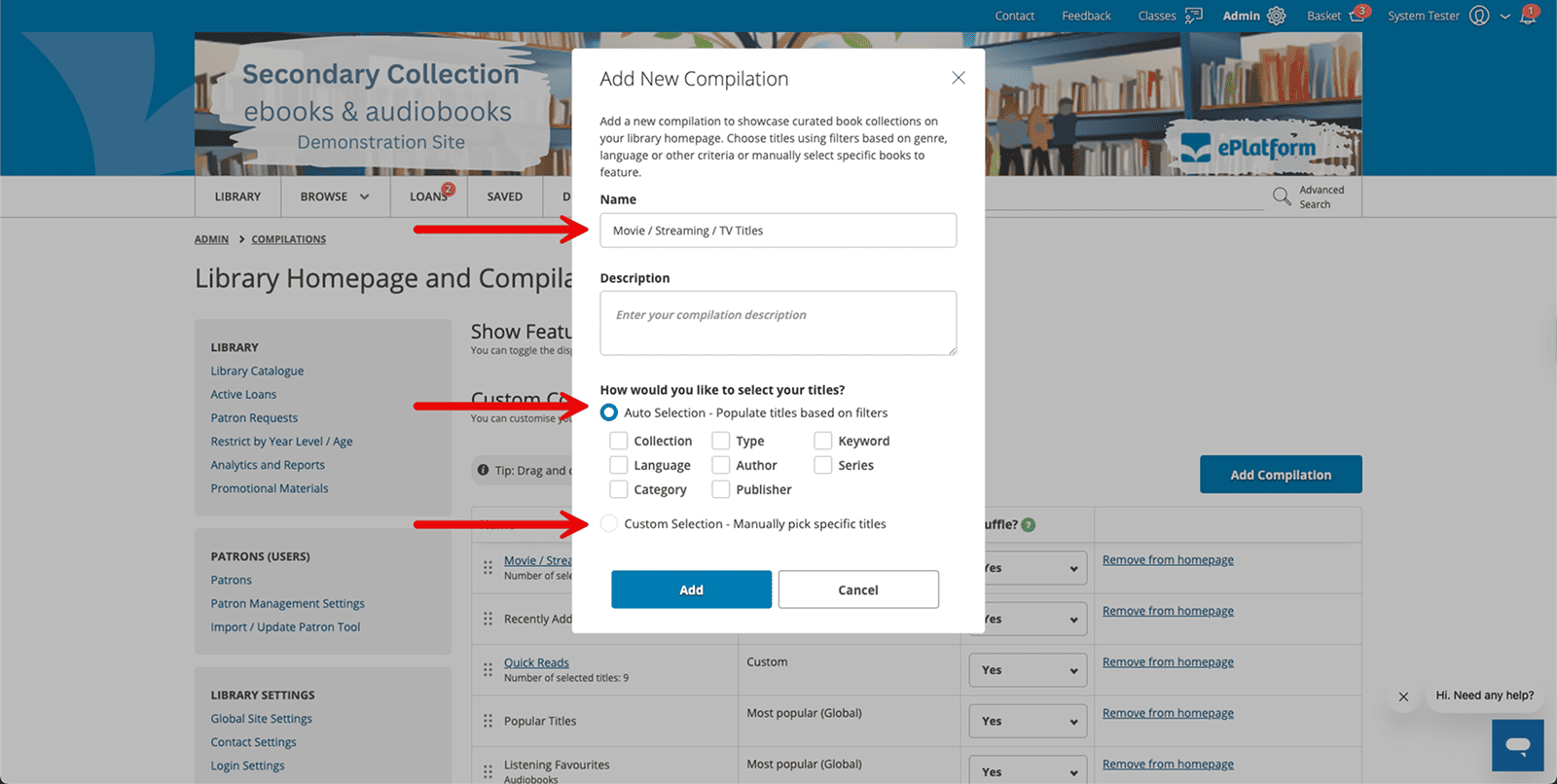
From the "Library Homepage and Compilations" screen, select "Add Compilation". A pop-up window will appear.
Step 2: Name Your Compilation
Enter the name for your new compilation.
Step 3: Select Your Titles
There are 2 methods of populating your compilation with titles:
- Auto-selection: Populate titles automatically based on filters such as Collection, Language, Category, Format (Type), Author, or Publisher.
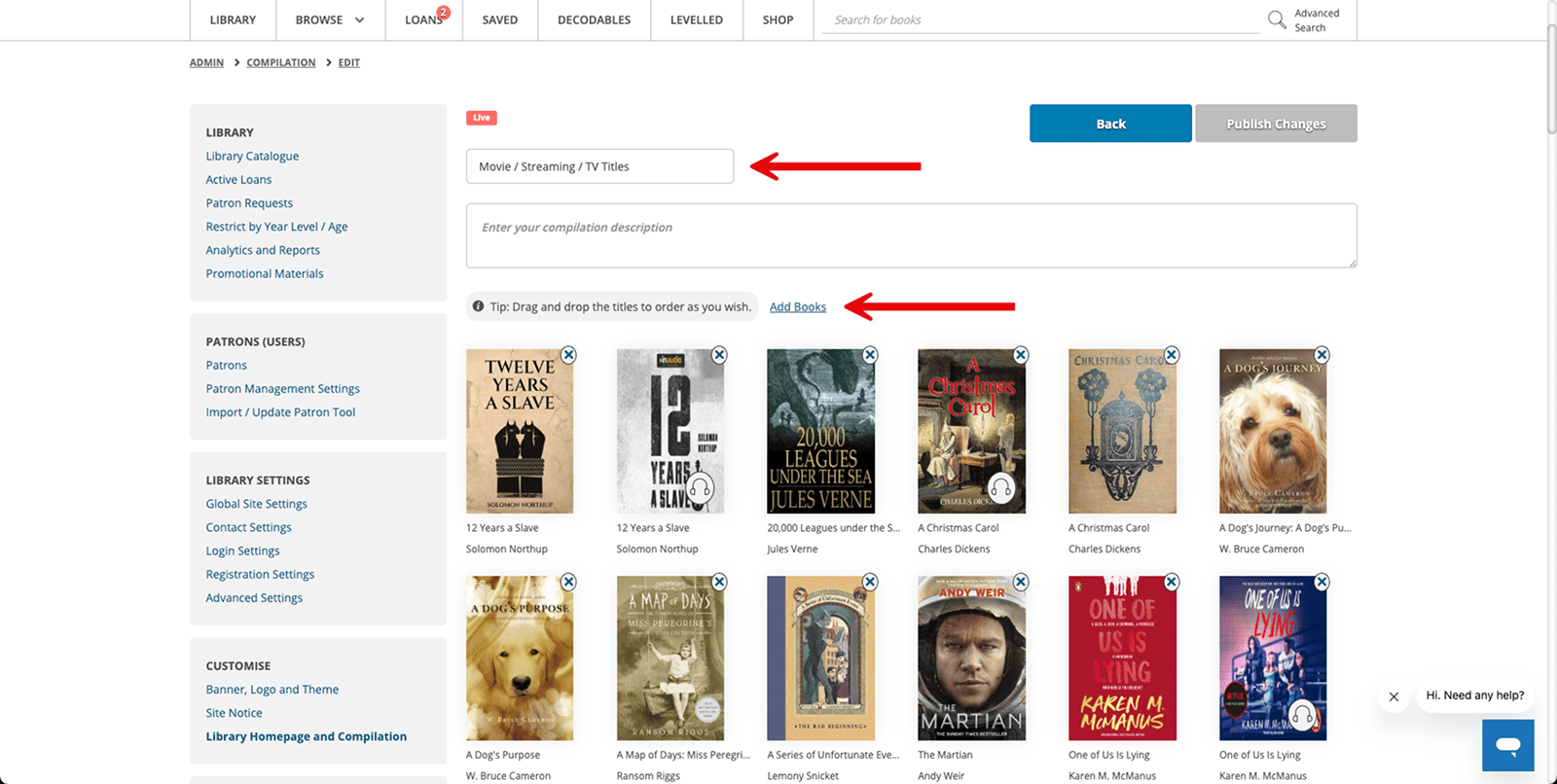
- Custom selection: Manually pick specific titles one by one, which is perfect for curriculum-specific lists.
How to Edit the Display Order
Once you have multiple compilations, you can easily control the order in which they appear to students on the library homepage. To reorder your homepage, use the six-dot drag handle located to the left of the compilation name. Simply click and hold this handle to move the row up or down; the higher the compilation is on this list, the higher it will appear on your library homepage.
You can also manage how the content within each carousel behaves. By using the dropdown menu in the "Shuffle?" column, you can decide if the books within a specific carousel should shuffle their order every time a student loads the page or remain in a fixed sequence.
If you want to temporarily take a list off the homepage without deleting your hard work, you can click "Remove from homepage" in the far right-hand column. This allows you to store seasonal or special-event compilations for future use.
For maximum impact, we recommend placing your newest or most relevant compilation at the very top for a few weeks to guide student discovery before moving it further down the page.
Frequently Asked Questions
Is there a limit to how many compilations I can have on my homepage?
There is no strict technical limit, but for the best student experience, we recommend having between 5 and 10 active compilations. Too many rows can make the homepage feel overwhelming and may slow down the loading time for students on slower internet connections.
What is the difference between "Remove from Homepage" and "Delete"?
"Remove from Homepage" simply hides the carousel from student view but keeps the list saved in your "Inactive" area—perfect for seasonal lists like 'Christmas Reads' or 'Summer Holidays'. "Delete" permanently removes the compilation and all its settings.
How often does an "Auto-selection" list update?
Auto-selection lists are dynamic. If you set a filter for "Newest Thrillers," the system will automatically add new books to that carousel as soon as they are added to your collection or the Shared Collection. This is the best way to keep your homepage fresh with zero manual maintenance.
Can I include both eBooks and Audiobooks in the same compilation?
Yes! When creating a compilation, you can use the "Format" filter to include both, or leave it blank to pull in any available format. This is a great way to showcase a specific series where you might have some titles as eBooks and others as Audiobooks.
What does the "Shuffle" feature actually do?
If "Shuffle" is turned on, the order of the books within that specific row will change every time a student refreshes their page. This ensures that different titles get "front-row" visibility, increasing the chances of a student discovering a hidden gem that might otherwise be hidden at the end of a long list.
Can I feature a specific book at the very start of a compilation?
To have total control over the order of books within a row, you should use the Custom selection method. This allows you to manually pick the titles. For Auto-selection lists, the order is determined by the filter settings (usually newest first).