Connecting your ePlatform collection to your school’s Library Management System (LMS) ensures students can discover eBooks and Audiobooks alongside your physical books. By integrating these systems, your digital titles appear directly in your library’s search results with "one-click" borrowing links. You can achieve this via an automated Live API connection for real-time syncing or by manually exporting MARC (Machine-Readable Cataloguing) records.
Option 1: LMS Integration via Live API
A live API connection is the most efficient way to manage your collection. It creates a permanent link between ePlatform and your LMS to automate your cataloguing and maintenance.
Step 1: Request Integration
Contact ePlatform Support at support@eplatform.co to request LMS integration or to have the API enabled for your account. This is a one-time setup that allows our systems to "talk" to your school's library software.
Step 2: Configure your LMS
Once enabled, you will receive a specific PDF tutorial for your system along with a unique Client ID and Client Secret. These credentials act as the secure key to connect your two platforms.
- For SoftLink Oliver: How To Set Up Wheelers EPlatform In Oliver Build 8 (PDF)
- For Accessit Library: V9 Library Setup - Wheelers EPlatform API Configuration And Resource Sync Setup (PDF)
- Other LMS's: Contact ePlatform Support at support@eplatform.co
Step 3: Automated Housekeeping
Follow the PDF tutorial provided to configure your system’s "Resource Sync." This ensures your local catalogue remains accurate by automatically adding new titles as you purchase them and removing records when licenses expire. This prevents broken links and ensures your students only see titles that are currently available to borrow.
Option 2: Manually Export MARC Records
Manual MARC exports are a great fallback if your LMS doesn’t support our API or if you prefer to manage your cataloguing updates manually.
Step 1: Navigate to the MARC Records page
In the ePlatform Admin area, locate the MARC Records link in the left-hand sidebar (located near the bottom of the menu).
Step 2: Filter Your Collection
Use the filter tools at the top of the page to define which records you need. You can filter by Type (eBook or Audiobook), Status, or Date Range. Filtering by "Last Added" is particularly useful if you only want to export records for new books added in the last month.
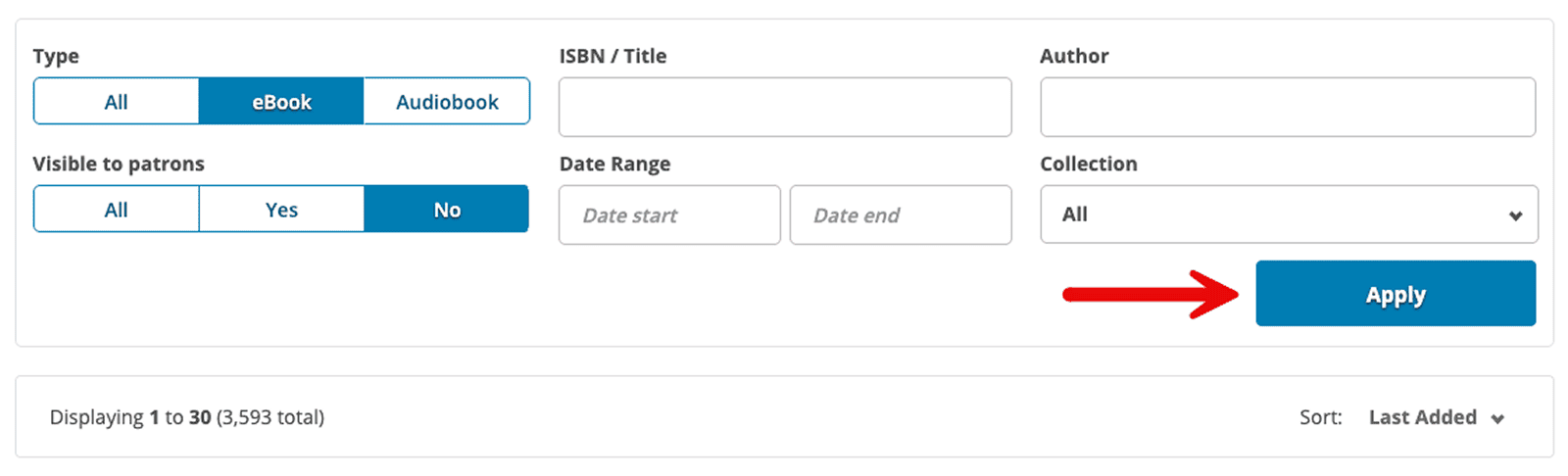
Step 3: Select Specific Titles
Once your filters are applied, you can manually select individual titles using the checkboxes on the left. You can also use the Sort dropdown to organize the list by ISBN, Title, or Publisher to make your selection easier.
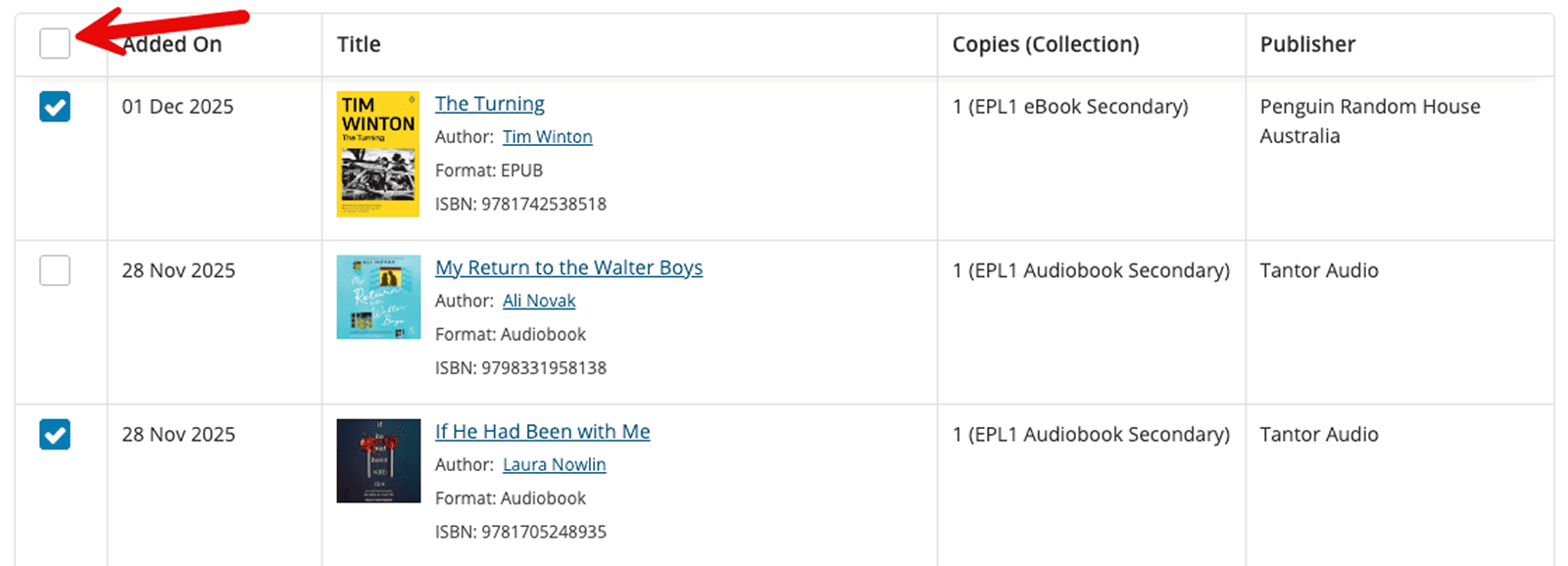
Step 4: Generate the Export
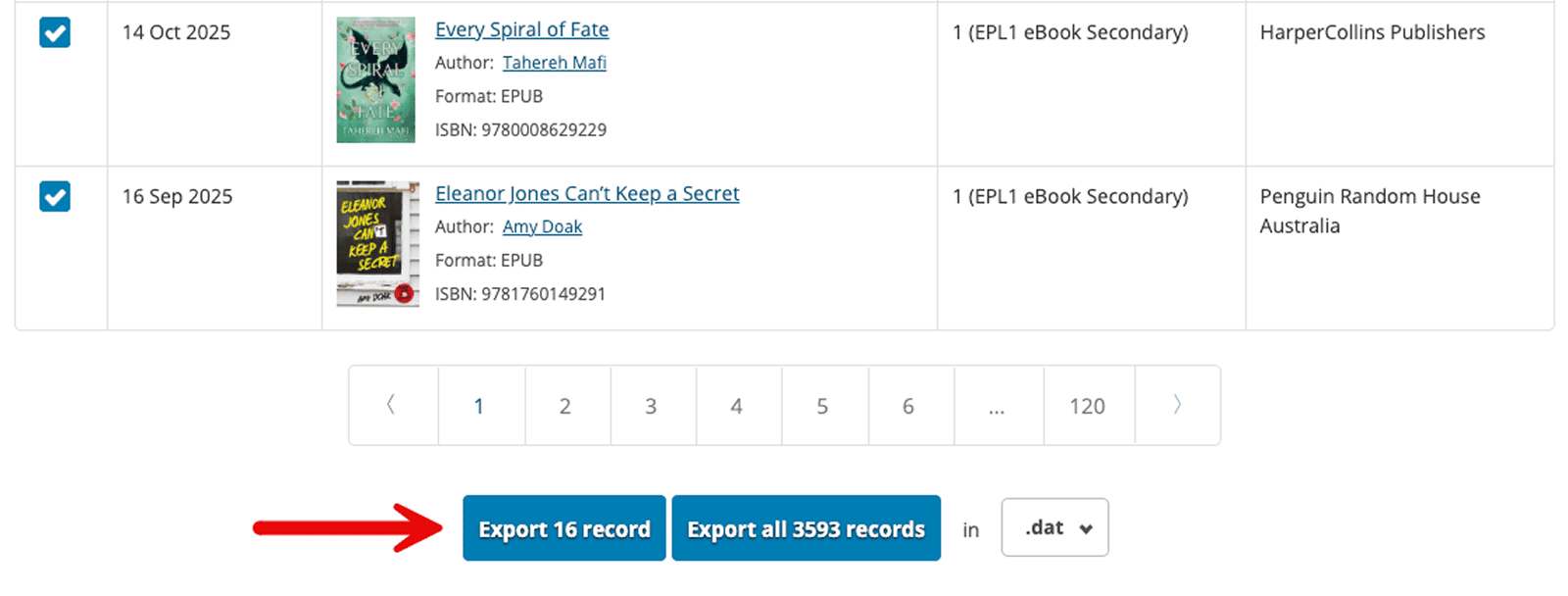
Scroll to the bottom of the page to choose your export action. Ensure you have the correct file type selected in the dropdown (typically .mrc or .dat) before clicking export.
- Export Selected: If you have checked specific titles, click the blue Export [X] record button to download MARC records only for those items. This button remains grey and inactive if no titles are selected.
- Bulk Export: Click the blue Export all [X] records button to download every title currently shown in your filtered list.
Step 5: Import to your LMS
Log in to your school's LMS and use the internal import tool to upload the file. While the process varies by system, you will generally navigate to the Management > Import area and select MARC as the data type.
Important Notes
Before you finalise your setup, please keep these three key points in mind to ensure your library data remains clean and functional.
Usage vs. Cataloguing Data
The MARC and API tools are specifically for cataloguing data (Title, Author, ISBN, and Discovery Links). They do not track how many times a book has been read. For borrowing statistics, popularity trends, and student engagement data, please use the Advanced Reports tab within the Analytics and Reports area of your Admin portal.
Manual Housekeeping (Option 2 Only)
If you choose the manual MARC export method, your LMS will not know when a book is no longer available. When you withdraw a title or a license expires on ePlatform, you must manually remove or update that specific record in your school’s LMS. Failing to do this will result in "broken links" where students find a book in your catalogue but cannot open it.
Note: If you use the Live API (Option 1), this housekeeping is handled for you automatically.
LMS Compatibility
While ePlatform provides industry-standard MARC records, every Library Management System has unique configuration requirements. To avoid bulk data errors, we strongly recommend performing a small test export of 5–10 records first. Import these into your system and verify that the cover art appears and the "Borrow" links function correctly before importing your entire collection.
Frequently Asked Questions
Should I use MARC or API?
Most modern systems (like Oliver or Accessit) support API integration. This is the preferred method because it automates the process; new books appear in your catalogue automatically, and expired ones are removed. Manual MARC exports are a great fallback if your LMS doesn't support our API or if you prefer total manual control. To see if your LMS can integrate with ePlatform, contact our support team at support@eplatform.co
Which file format should I choose: .mrc or .dat?
This depends on your specific Library Management System (LMS). Most modern systems prefer .mrc, but some older setups require .dat. If you aren't sure, we recommend doing a test import of 5 titles in both formats to see which one displays the book data and cover art most accurately in your system.
Where do I get my Client ID and Secret for API integration?
These are sensitive security credentials. Please contact ePlatform Support at support@eplatform.co to have them generated for your school. Once provided, keep them secure as they act as the "key" to your library's data sync.
If I use manual MARC records, do they update automatically?
No. Unlike the API, manual MARC records are "static." If you buy new books or a license expires, your LMS won't know unless you manually upload a new file or delete the old record. We recommend performing a "New Titles" export once a month to keep your catalogue current.
Does this integration affect my borrowing rules or loan limits?
No. MARC records and API integrations only manage discovery (how students find the books in your catalogue). Borrowing rules, loan durations, and user permissions are not affected.
Why are my book links not working after I imported the file?
If students are prompted to log in when clicking a link, ensure your Authentication Settings are correctly configured. For additional support, contact support@eplatform.co