Welcome to ePlatform!
Your digital library is live and ready for borrowing. To help you launch successfully, we have outlined the essential steps to get your students connected and reading safely.
While ePlatform is packed with powerful features, this guide focuses on the core tools you need to get started. Explore the steps below, and remember—our friendly support team is just a click away if you need guidance.
Jump to a Section:
Video Tutorials
We have created comprehensive video playlists to guide you through every feature. Whether you need a quick "how to" on a specific topic or a full walkthrough, these are great resources to have on hand:
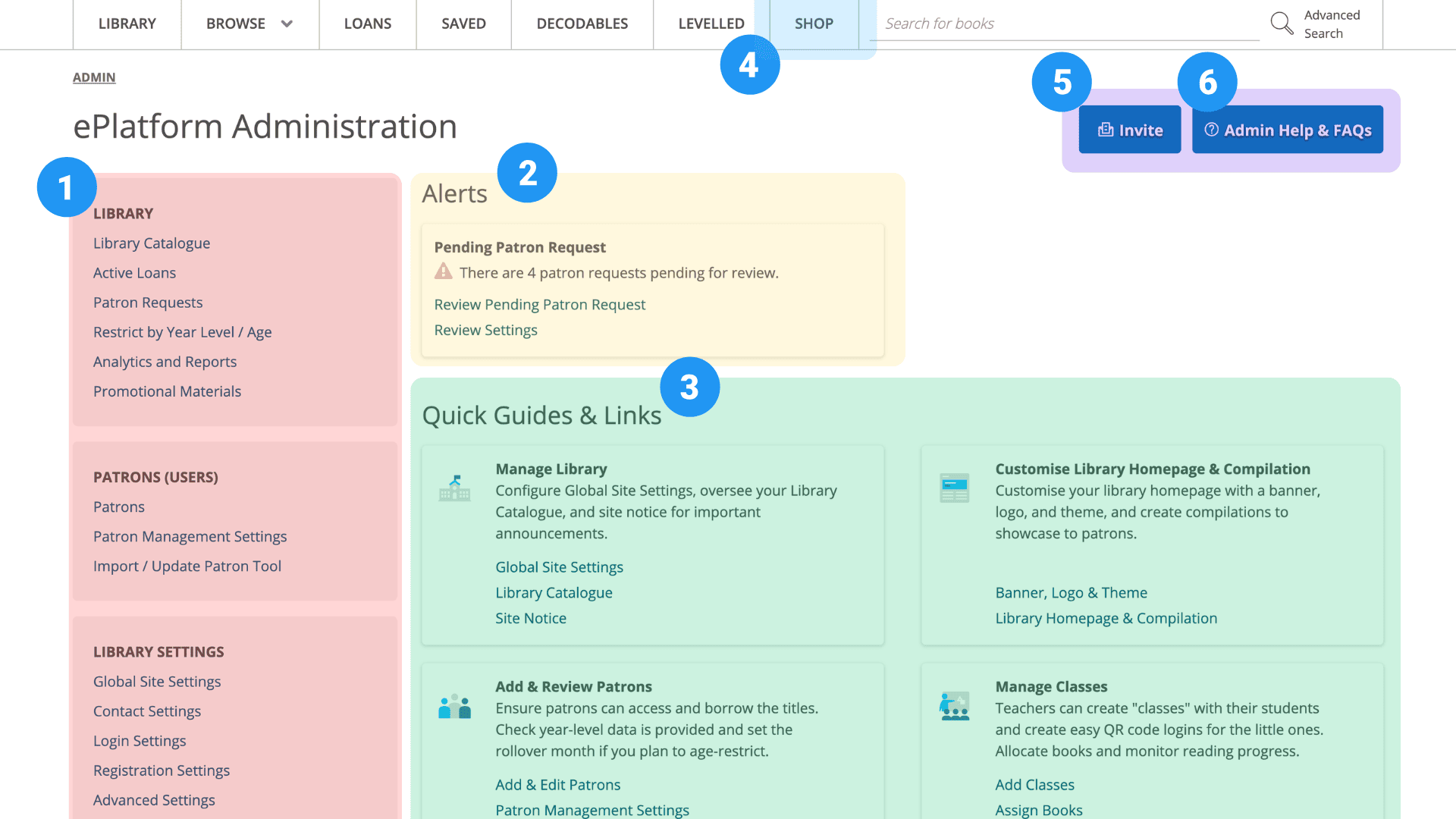
Familiarise Yourself with the ePlatform Admin Area
| Admin Feature | Description & Purpose |
|---|---|
| Admin Sidebar | This is your permanent navigation menu, logically grouped to help you find what you need. |
| Alerts | Dynamic notifications that appear when tasks need your attention (e.g., book requests or age conflicts). Tip: An empty alerts box means your library is running smoothly. |
| Quick Guides & Links | Shortcuts to frequently used tools. Use these to jump straight to pages like "Add a Student" or "Create a Compilation" without digging through menus. |
| Shop | Purchase extra titles exclusive to your school. Use this for class sets, specific textbooks, or student/teacher requests not in the shared collection. |
| Invite | Generates a quick-access link you can email to staff or students, allowing them to log in instantly without needing to enter a password. |
| Admin Help & FAQs | Your direct line to support. Search our Knowledge Base or submit a technical support ticket directly to our team. |
Finish Setting Up Your ePlatform
Step 1 Adding Your Students and Staff (Patrons)
To borrow books on ePlatform, students and staff need a way to log in. We require both a login and password for library members to download eBooks or Audiobooks. You can achieve this by creating a username and password for each user, or by connecting to your school's existing system so there is no need for new login credentials.
Check if your patrons have been added: If your patrons have already been added, you can confirm this by clicking "Patrons" in the left sidebar. This page lists all current library members.
To add patrons:
There are 3 methods available depending on your school's needs:
| Method | Best For... | Action |
|---|---|---|
| Add students individually | Adding staff or a small number of new students manually one-by-one. | Patrons |
| Bulk Upload | Onboarding an entire year group or the whole school at once via CSV. | Import / Update Patrons |
| Single Sign-On (SSO) | Large schools using SSO, LDAP, or SIP2 for automatic, "set and forget" syncing. | Learn more about SSO |
For more information on how to add or update patrons visit: Managing Logins & Passwords
Automate Your Maintenance:
To keep your data clean, navigate to Admin > Patron Management Settings to configure your automation rules for students who leave the school (e.g. graduates):
| Setting | Recommended Action | Action |
|---|---|---|
| Disable Inactive | Set to After 1 year. This automatically deactivates leavers while preserving their history in case they return. | Disbale Inactive Patrons |
| Delete Permanently | Set to After 3 or 5 years. This permanently scrubs old records for data privacy and speed. | Permanently Delete Patrons |
| Year Level Rollover | Select your school's start month. The system will "math" students up a year level automatically to keep age restrictions accurate. | Manage Year Level Rollover |
Tip: This page will display the "Number of Affected Patrons." Check this under Disabled / Deleted Patron Logs before saving to ensure you aren't accidentally disabling a large group of active students.
Step 2 Integrate Your Library Management System (LMS)
If your school uses a Library Management System (LMS), we recommend integrating ePlatform. This allows students to search for eBooks and Audiobooks directly within your existing library catalogue, increasing visibility and borrowing rates.
| Supported Systems | How to Connect | Activation |
|---|---|---|
| All major systems including Oliver v5, Accessit, Libresoft, Clever, Wonde, Google Classroom and Concord Infiniti. | Email support@eplatform.co with your LMS URL and connection details (SIP2 or API Key). | Our team will configure the backend and provide a step-by-step setup PDF for your school's IT team. |
For more information on how to integrate ePlatform with your Library Management System (LMS), visit: LMS Integration & MARC Records
Step 3 Safety & Borrowing Rules (Age Restrictions)
Your library contains thousands of titles; we recommend setting Year Level restrictions to ensure students only access age-appropriate content. This allows you to manage your collection at scale rather than hiding books individually.
| Feature | How to Use It | Action |
|---|---|---|
|
Restrict by Year Level (Recommended) |
Assign a number (e.g., "9") to restrict access to Year 9 students and above. You can also use "Age" (e.g., "10+") if preferred. | Set Restrictions |
| Bulk Apply Averages | Use Average YL data from other schools. Use the blue arrow for one title, or the double arrow in the header for the whole page. | Set Restrictions |
| Prerequisite | This feature requires student data. Ensure records include Year Level or Date of Birth (via SSO or spreadsheet). | Update Patrons |
For more information on setting restrictions, visit: Age Restricting Titles
Admin Tips
Fair Use & Loan Limits
To ensure every member school has equal access to our Shared Collections, we utilize a "Fair Use" policy. This involves generous limits on simultaneous loans and total loans per month to ensure the collection has the depth to support all our users.
Standard Monthly Loan Limits
Most schools operate under the following monthly loan caps for their shared collections. These limits are designed to exceed the expected student usage for the vast majority of schools.
Note for Small School Plans: If your school is on a Small School Plan (SSP), the standard monthly limits listed below are generally halved.
| Plan Type | eBooks | Audiobooks | Wellness |
|---|---|---|---|
| Full Plan | 300 | 200 | 50 * |
| Small School Plan | 150 | 100 | 25 * |
* Wellness collection availability is currently limited to Australia, New Zealand, and the United Kingdom.
Standard Patron Limits
To ensure all students have access to popular titles, each student is typically limited to 2 active loans at a time from the shared collection (this limit is increased to 4 for the Wellness collection).
What if our school is approaching these limits?
High engagement is a "great problem to have." If your analytics show you are consistently nearing your monthly limits, please Contact Our Support Team. We will work with you to ensure your students have uninterrupted access, whether through a plan adjustment or by helping you build a private collection to supplement the shared library.
Analytics & Reports
Once you launch, the Analytics and Reports dashboard helps you measure your library's impact by tracking real-time borrowing data. You can identify your most popular titles to guide future purchases and spot your top patrons to reward engagement.
Learn how to measure your library's impact: Guide to Usage Analytics
Customisation & Library Curation
Add Your School Branding
You can customise your ePlatform site and apps with your own banner image, logo, and colour theme to give students a familiar look and feel. We recommend a banner size of 1440px width (Tip: run a student Canva competition to design it!) and a 100px square logo for the app icon.
Add your school branding: Banner, Logo and Theme
Creating Custom Homepage Compilations
Compilations act as digital book displays to guide student discovery, with defaults like "Popular Titles" and "New Releases" ready to go. You can also create custom compilations manually or via filters (e.g., Genre, Language, Series, Author, etc.) and simply drag-and-drop to arrange the perfect homepage layout.
Learn how to curate your homepage: Guide to Creating Compilations
Contact Settings
Your students may occasionally need help with their accounts. By default, the "Contact" page on the portal sends a message directly to your Primary Contact email. If you have a library support page or helpdesk URL, you can redirect students to an external URL.
Manage student support requests: Contact Settings
The ePlatform Shop
Your subscription provides access to a massive Shared Collection of titles available to all member schools. To supplement this, you can browse the Shop to purchase additional titles specifically for your school's Private Collection. These purchases are exclusive to your school and ensure specific books are always available.
Class Sets (Simultaneous Loans)
Standard loan limits can make class-wide reading difficult. Class Set Bookings allow you to secure between 3-150 copies of a title for a fixed duration (1-12 months). Because we utilise existing copies in the Shared Collection where possible, the price is often significantly reduced compared to buying individual licenses.
Learn how to book simultaneous copies for your class: Guide to Class Set Bookings
Monthly Additions to Shared Collections
The Shared Collection grows every month, and you have a say in what gets added. You can browse the Shop for titles not yet in the shared collection and "Suggest" them for inclusion. This adds the book to a community voting list where other schools can upvote it. Titles with the most votes are prioritised for the next round of additions.
Learn how to influence the Shared Collection: Guide to Suggesting Titles
Promoting Your ePlatform
The ePlatform App
Most student reading happens on personal devices. The ePlatform App is the easiest way to access the collection, allowing students to continue reading outside of school hours and during holidays. With cloud syncing, their reading progress follows them across devices, so they can seamlessly pick up exactly where they left off, whether on a phone, tablet, or laptop.
Marketing Resources
You don't need to create marketing materials from scratch. We have designed a complete suite of promotional resources including high-resolution posters, bookmarks, social media images, and digital banners for your school website. We also provide template letters for parents and staff to help spread the word. Many of these assets are editable allowing you to add your specific instructions or school branding before sharing.
Access our full suite of marketing resources and strategies: Guide to Promotion Strategies
Help & Support
We are committed to supporting you every step of the way. If you ever get stuck or need advice on getting the most out of your library, our team is always available to help. You can reach us directly at support@eplatform.co.
Frequently Asked Questions
I am taking over from a previous staff member; where do I start?
Welcome! We recommend starting with Step 1 above to familiarise yourself with the Admin area. Your library is likely already configured, so your first task is usually checking the Patrons list to see if your student data needs updating for the new school year. If you would like a helping hand, we offer free 1:1 or small group training via online meetings with our Customer Success team to walk you through your specific portal. Contact us at ebooks@eplatform.co to arrange a time that works for you.
How long does the initial setup usually take?
If you choose a manual bulk upload for students, you can have your library ready for borrowing in under 30 minutes. If you choose a technical integration (SSO/LMS), it may take longer and require your school's IT department, but our support team will handle the heavy lifting for you.
Do I need to be a "tech expert" to manage ePlatform?
Not at all. ePlatform is designed for librarians and teachers, not IT professionals. Most tasks—like creating book displays or pulling reports—are simple "point and click" actions. For anything technical (like LMS integration), our support team is available to walk you through it.
Can I "break" anything by clicking around?
No. Most settings in the Admin area can be easily toggled on or off. We encourage you to explore the different menus. If you ever make a change and aren't sure how to revert it, just reach out to us and we can restore your previous settings.
Is there a cost for technical support or training?
No. Unlimited technical support and access to our full suite of training videos and help guides are included in your subscription. We want you to feel confident using the platform!