Downloading Advanced Reports
Advanced Reports let you download detailed ePlatform usage data for further analysis or record keeping. Reports can be downloaded as Excel or CSV files.
Open Advanced Reports
- Sign in to your ePlatform library using an administrator account.
- Open the Admin area.
- Under View Analytics & Reports, select Download Advanced Reports.
This opens the Advanced Reports area, where you can configure and download detailed library usage data.
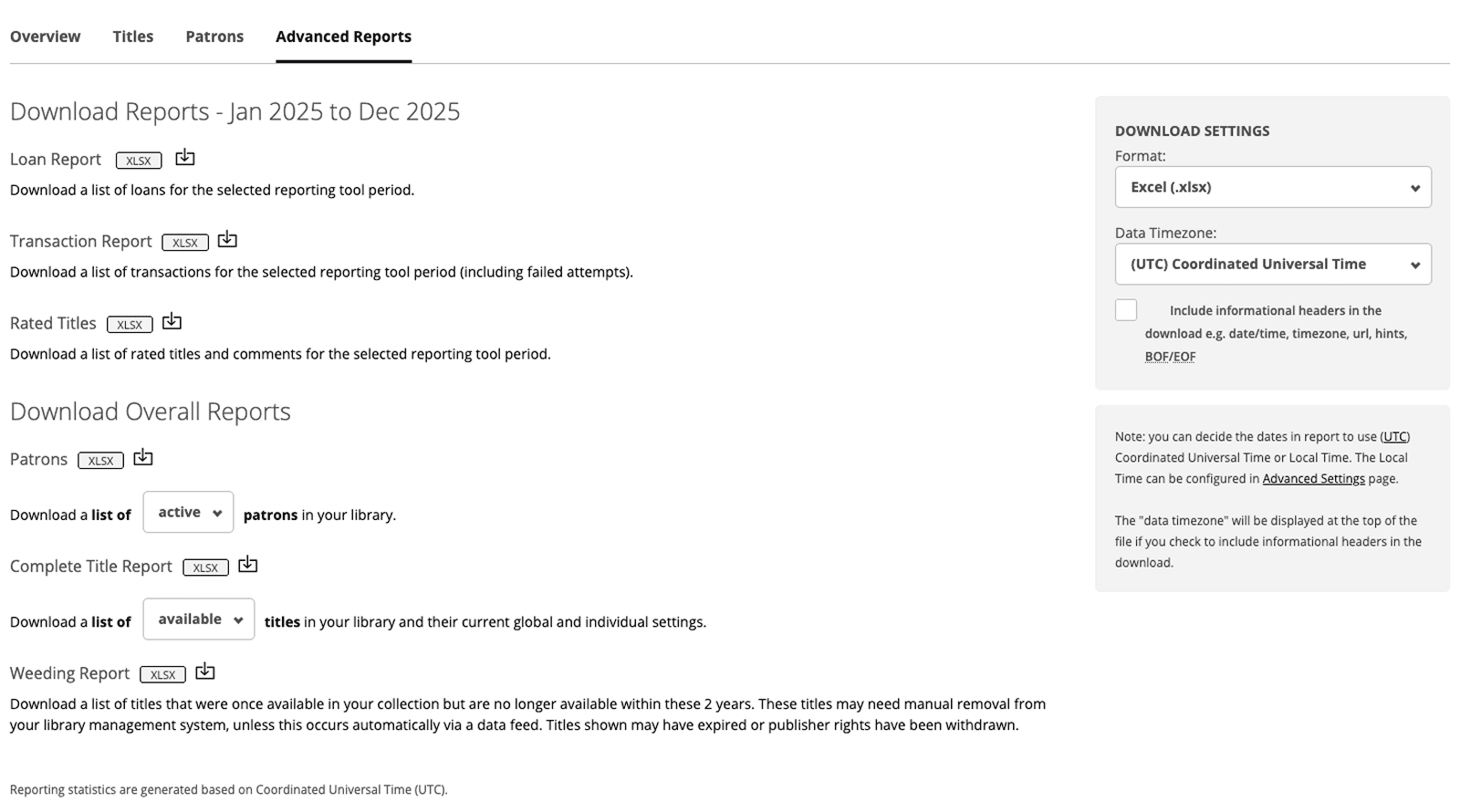
Set your report filters
The information included in an advanced report is based on the filters applied at the top of the page. Set the required filters before downloading your report.
Check the selected filters carefully if the downloaded report contains more or less information than expected.
Configure the download settings
Use the Download Settings panel on the right of the Advanced Reports page to configure the exported file.
Choose a file format
Select one of the following formats:
- Excel (.xlsx): Suitable for opening and analysing the report in spreadsheet software that supports Excel files.
- CSV: A plain-text spreadsheet format that can be opened or imported into many reporting and data-analysis tools.
Choose a time zone
Select how dates and times should appear in the downloaded report:
- UTC: Displays dates and times using Coordinated Universal Time.
- Local Time: Displays dates and times using your local time.
Include informational headers
You can choose whether to include informational headers in the downloaded report. These headers provide additional information about the report and its selected settings.
Download the report
- Apply the required filters at the top of the Advanced Reports page.
- Choose either Excel (.xlsx) or CSV.
- Select either UTC or Local Time.
- Choose whether to include informational headers.
- Download the report using the available download option.
Understanding report times
ePlatform reporting statistics are generated using UTC. Selecting Local Time changes how dates and times are presented in the downloaded report.
If dates or times do not appear as expected, return to the Download Settings panel, select the appropriate time-zone option, and download the report again.
Need help?
If you cannot access Advanced Reports or the downloaded report does not contain the expected information, contact support@eplatform.co. Include your library name and the filters and download settings you selected.