Exporting MARC Records
Exporting MARC records allows you to add ePlatform eBooks and Audiobooks to your Library Management System catalogue.
You can filter the available records, export selected titles or a complete filtered list, and download the records in .mrc or .dat format.
Open MARC Export
- Sign in to your ePlatform library using an administrator account.
- Select Admin from the top navigation.
- In the menu on the left, scroll to Integration.
- Select MARC Export.
The MARC Export page displays the ePlatform titles available for export.
Filter the records
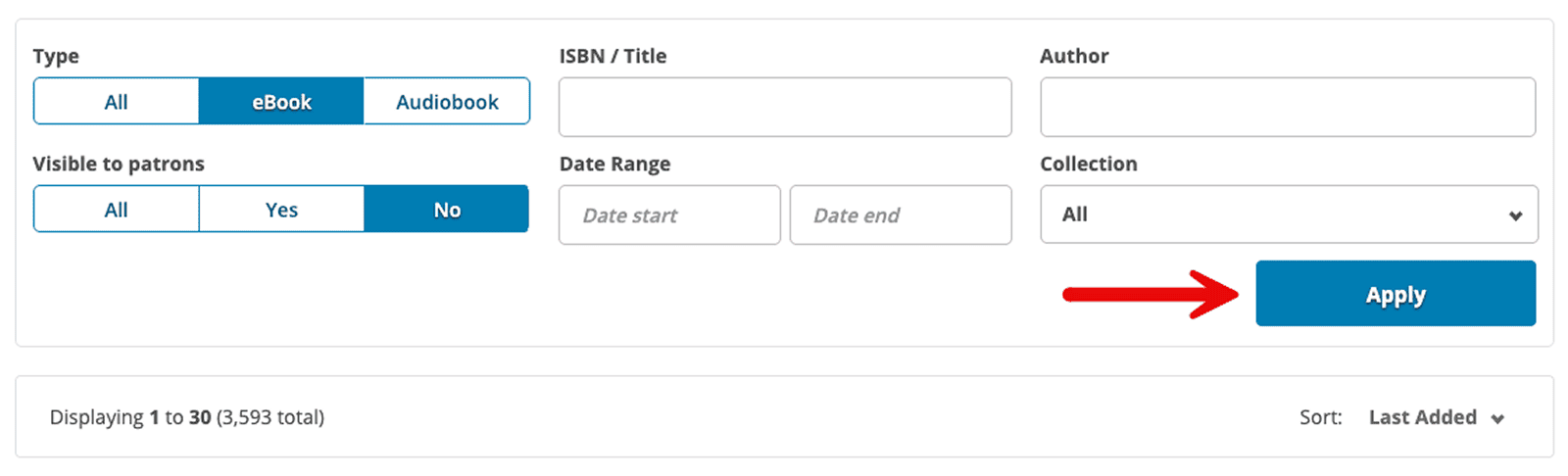
By default, the MARC Export page displays all available titles in your catalogue. Use the filters to refine which records are shown.
- Type: Display all titles, eBooks, or Audiobooks.
- ISBN / Title / Author: Search for a specific title, ISBN, or creator.
- Visible to Patrons: Display titles that are currently visible or hidden from patron view.
- Date Range: Display records added during a selected period.
- Collection: Display records from a selected collection.
Select Apply after choosing your filters.
Select records to export
After applying the required filters, choose whether to export individual records or the complete filtered list.
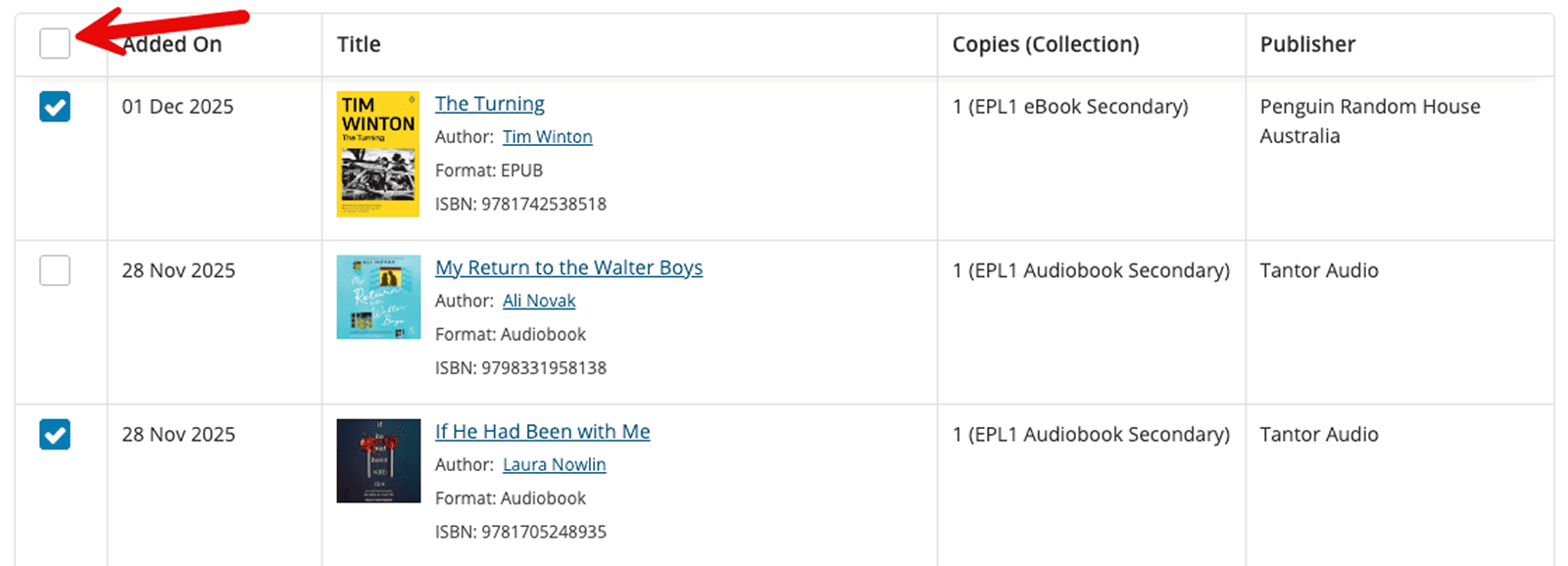
Export selected records
- Find the titles you want to export.
- Select the checkbox beside each title.
- Confirm that the required records are selected.
You can use the available sorting options to organise the displayed records by information such as ISBN, title, or publisher.
Export all filtered records
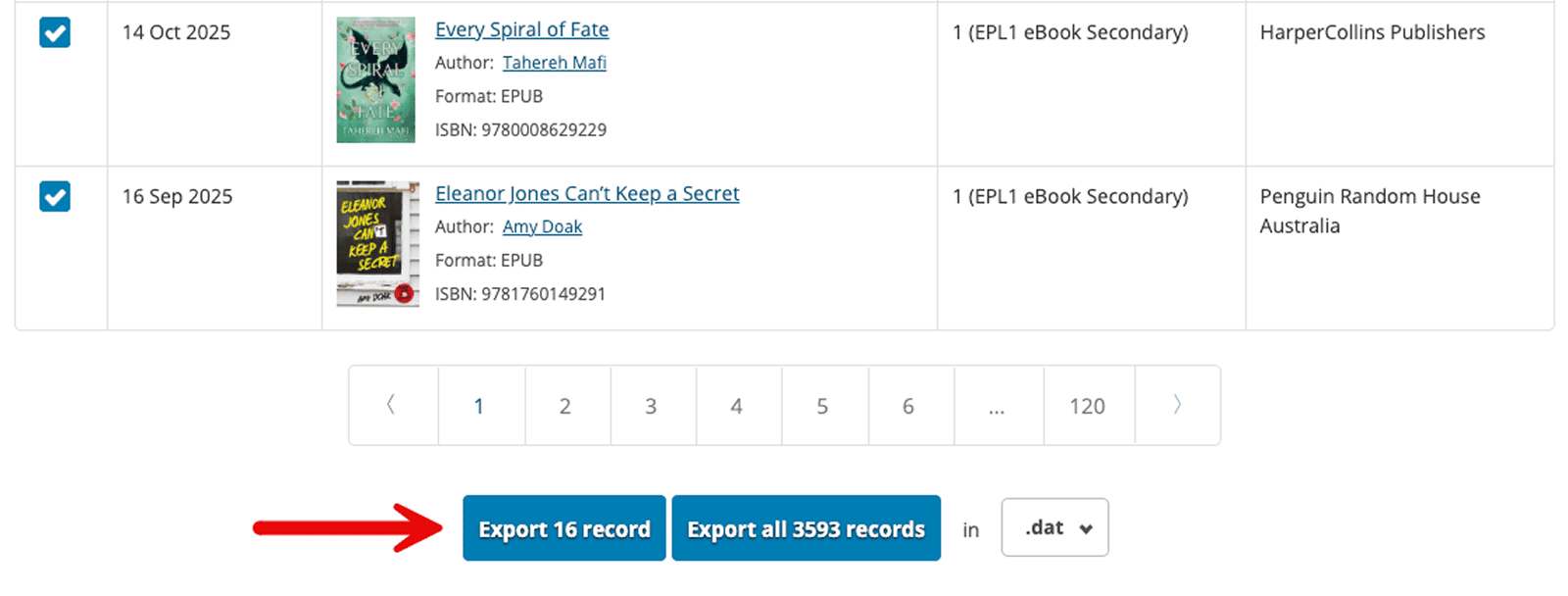
You do not need to select every title individually when exporting the complete filtered list. The total number of records included is displayed in the bulk export option at the bottom of the page.
Check the active filters before continuing. The bulk export includes all records currently shown by those filters.
Choose the file format
At the bottom of the MARC Export page, select the file format required by your Library Management System:
- .mrc; or
- .dat.
The correct format depends on your Library Management System. Confirm the required format with your LMS provider if you are unsure.
Download the MARC file
Download selected records
After selecting individual titles, use the Export [count] record option to download only those records. The export option remains inactive when no titles are selected.
Download all filtered records
Use Export all [count] records to download every record in the current filtered list.
Save the downloaded file to your computer. You can then import it into your Library Management System using the MARC import process provided by your LMS.
Test the MARC import
Before importing the complete collection, perform a small test export of five to ten records.
- Filter or select five to ten ePlatform titles.
- Export the records in the format required by your LMS.
- Import the file into your Library Management System.
- Search the LMS catalogue for the imported titles.
- Confirm that the title and author information appears correctly.
- Confirm that the cover images appear.
- Open each discovery or borrowing link.
- Confirm that each link opens the correct title in ePlatform.
Complete the full export only after the test records display and function correctly.
Maintain your catalogue records
MARC records are static. Your Library Management System does not automatically know when titles are added to or removed from your ePlatform collection.
When using manual MARC records, you must:
- export and import records for newly added titles;
- update records when required; and
- remove records when a title is withdrawn or its licence expires.
If unavailable records are not removed, students may find a title in your LMS catalogue but be unable to open it in ePlatform.
The existing repository guidance recommends performing a new-title export once a month to help keep your catalogue current.
MARC records do not contain usage analytics
MARC records contain cataloguing and discovery information. They do not report how often a title has been borrowed or read.
For borrowing statistics, popularity, and patron engagement data, use the Analytics and Reports area in the ePlatform Admin portal.
Need help?
If you cannot export or import the records successfully, submit a support request or email support@eplatform.co.
Include:
- your ePlatform library name;
- the name of your Library Management System;
- the file format selected;
- the number of records exported; and
- the error message displayed, if any.