Creating & Managing Homepage Book Compilations
Homepage compilations are horizontal carousels of eBooks and Audiobooks displayed on your library homepage. Use them to highlight genres, seasonal titles, curriculum resources, staff recommendations, or other selected content.
Administrators can create compilations, control how titles are selected, change their homepage order, shuffle the titles displayed, or temporarily remove a compilation from the homepage.
On this page
- Video tutorial
- What are homepage compilations?
- Open the compilation settings
- Create a compilation
- Choose how titles are selected
- Change the compilation order
- Shuffle the titles displayed
- Remove a compilation from the homepage
- Frequently asked questions
Video tutorial
Watch this tutorial for a walkthrough of creating and managing homepage compilations.
What are homepage compilations?
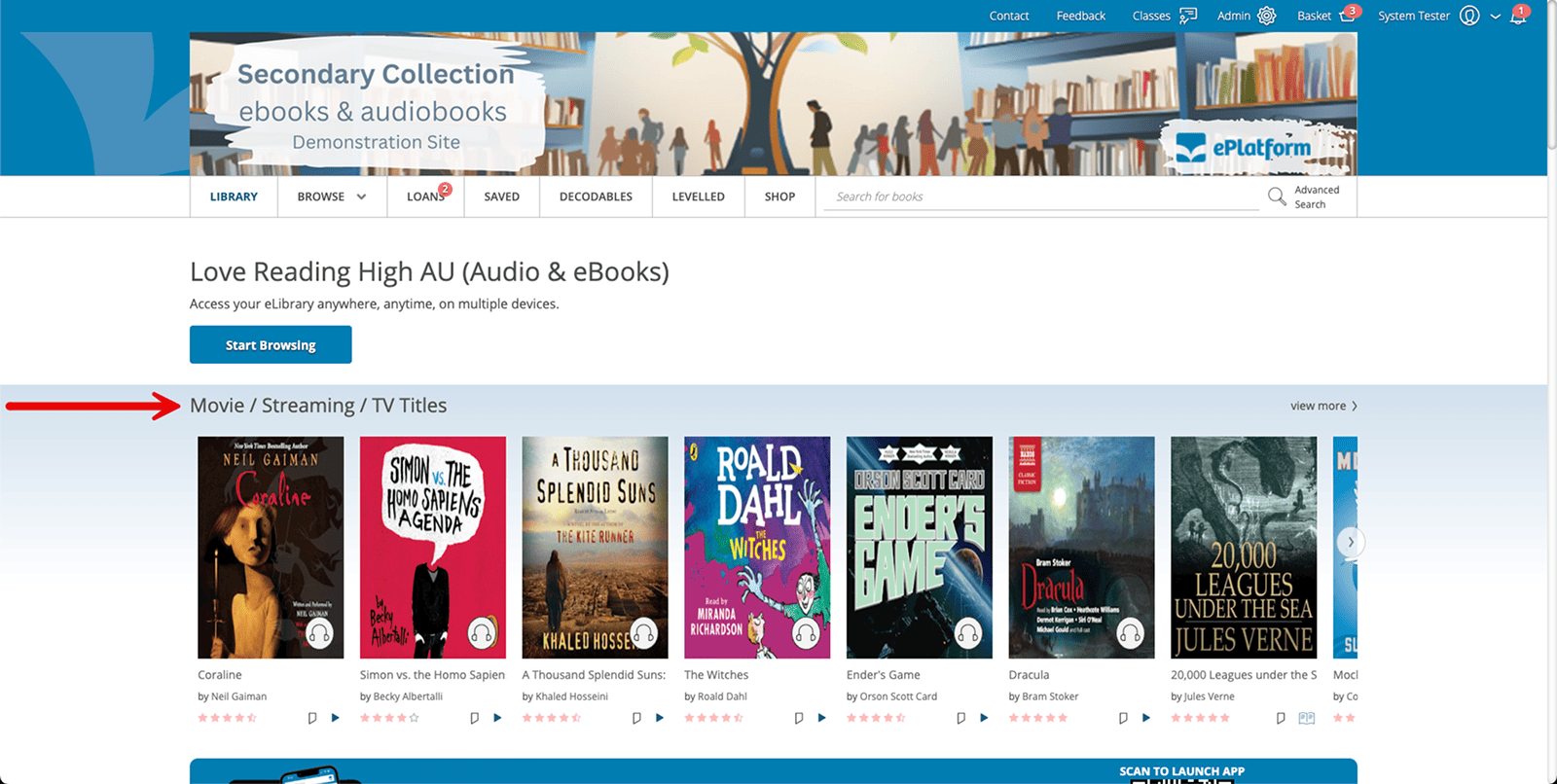
Compilations are rows of books displayed on the reader-facing library homepage. Readers can move through each row and select a title to view it.
ePlatform provides default compilations such as Popular Titles and Listening Favourites. Administrators can also create custom compilations and control where they appear on the homepage.
Open the compilation settings
- Sign in to your library's ePlatform portal as an administrator.
- Open the Admin area.
- Find Customise Library Homepage & Compilation.
- Select Library Homepage & Compilation.
The complete navigation path is: Admin area → Customise Library Homepage & Compilation → Library Homepage & Compilation.
Create a compilation
Step 1: Add the compilation
- Open Library Homepage & Compilation.
- Select Add Compilation.
- Wait for the new-compilation window to open.
Step 2: Name the compilation
Enter a clear name that tells readers what they will find in the compilation.
Compilation names could describe:
- a genre;
- a subject or curriculum topic;
- a seasonal event;
- a reading programme; or
- recommendations from teachers or library staff.
Step 3: Choose how titles are selected
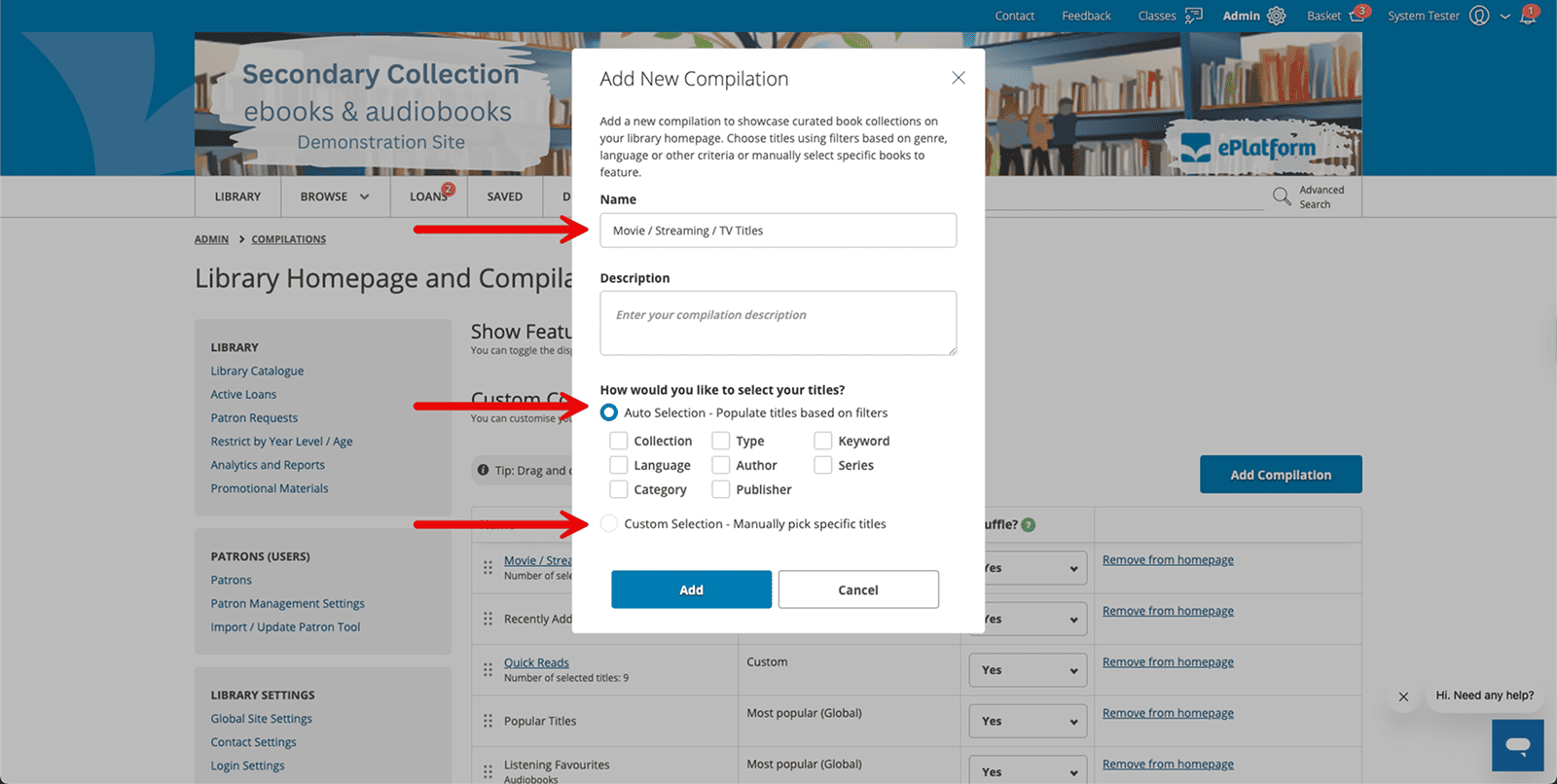
There are two ways to populate a compilation:
| Selection method | How it works |
|---|---|
| Auto-selection | Automatically selects titles using filters such as Collection, Language, Category, Format, Author, or Publisher. |
| Custom selection | Allows you to manually choose specific titles for the compilation. |
Use auto-selection
Choose auto-selection when you want ePlatform to populate the compilation using one or more filters.
Available filters include:
- Collection;
- Language;
- Category;
- Format or Type;
- Author; and
- Publisher.
Auto-selection compilations are dynamic. Titles that match the selected filters can be added as they become available in your collection or the Shared Collection.
Use custom selection
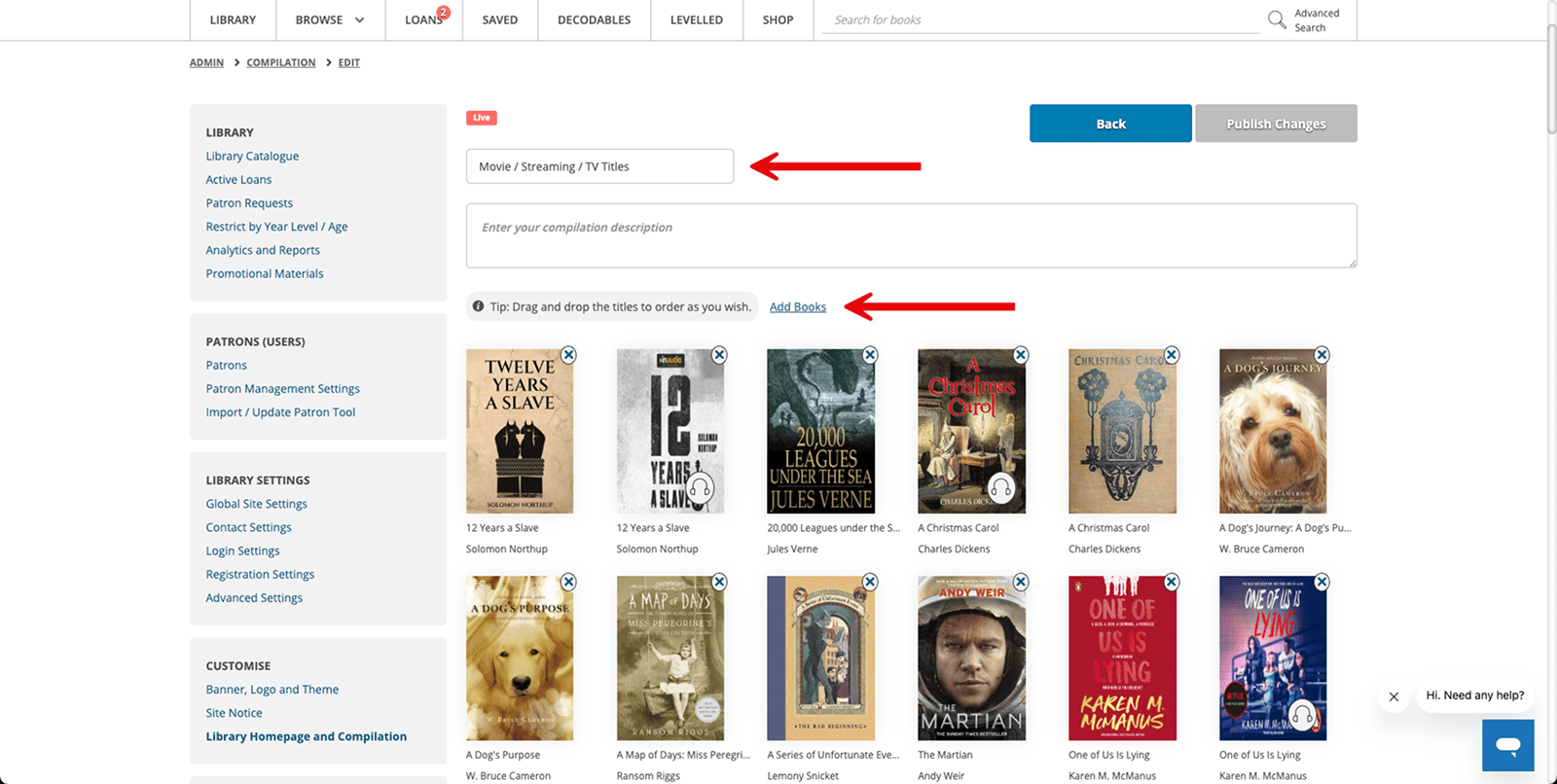
Choose custom selection when you need to manually select particular titles. This is useful for curriculum lists, class reading, staff recommendations, or a compilation where the title order needs to be controlled.
Change the compilation order
The order shown in the Admin area controls where each compilation appears on the reader-facing homepage.
- Find the compilation you want to move.
- Select and hold the six-dot drag handle beside the compilation name.
- Drag the compilation up or down the list.
- Release it in the preferred position.
The higher a compilation appears in the Admin list, the higher it will appear on the library homepage.
Shuffle the titles displayed
Use the dropdown menu in the Shuffle? column to control the order of titles inside a compilation.
- When shuffle is enabled, the title order changes when a reader loads or refreshes the homepage.
- When shuffle is not enabled, titles remain in a fixed sequence.
Shuffling can help different titles appear near the beginning of a compilation instead of repeatedly displaying the same titles first.
Remove a compilation from the homepage
Select Remove from homepage when you want to hide a compilation without deleting it.
The compilation is kept in the Inactive area so it can be used again later. This is useful for seasonal, holiday, or special-event compilations.
Deleting a compilation is different: deletion permanently removes the compilation and its settings.
Review the homepage
After creating or changing a compilation:
- Open the reader-facing library homepage.
- Confirm that the compilation is displayed in the expected position.
- Check that the correct titles are included.
- Confirm that the compilation name is clear to readers.
Frequently asked questions
How many compilations should appear on the homepage?
There is no strict technical limit. For a clear reader experience, the existing guidance recommends keeping approximately five to ten compilations active on the homepage.
What is the difference between Remove from homepage and Delete?
Remove from homepage hides the compilation and keeps it in the Inactive area. Delete permanently removes the compilation and its settings.
Do auto-selection compilations update automatically?
Yes. When new titles match the selected filters, they can be added to the compilation automatically.
Can a compilation contain eBooks and Audiobooks?
Yes. Use the Format filter to include both formats, or leave the format unselected to include any available format that matches the other filters.
Can a specific title appear at the beginning of a compilation?
Use Custom selection when you need direct control over the titles and their sequence. Auto-selection compilations use the configured filters to determine their contents and order.