Customising Homepage Collection Tiles
Collection tiles help readers browse key areas of your ePlatform library, such as Decodables, Levelled Readers, Fiction, and Non-Fiction.
Library administrators can choose which tiles appear, select the images used, rotate multiple images, and arrange the tiles in a preferred order.
On this page
- What are collection tiles?
- Open the collection tile settings
- Choose which tiles are displayed
- Select images for each tile
- Rotate multiple images
- Change the tile order
- Publish your changes
- Frequently asked questions
What are collection tiles?
Collection tiles are the large links displayed on your library homepage. Readers can select a tile to browse the corresponding part of the library.
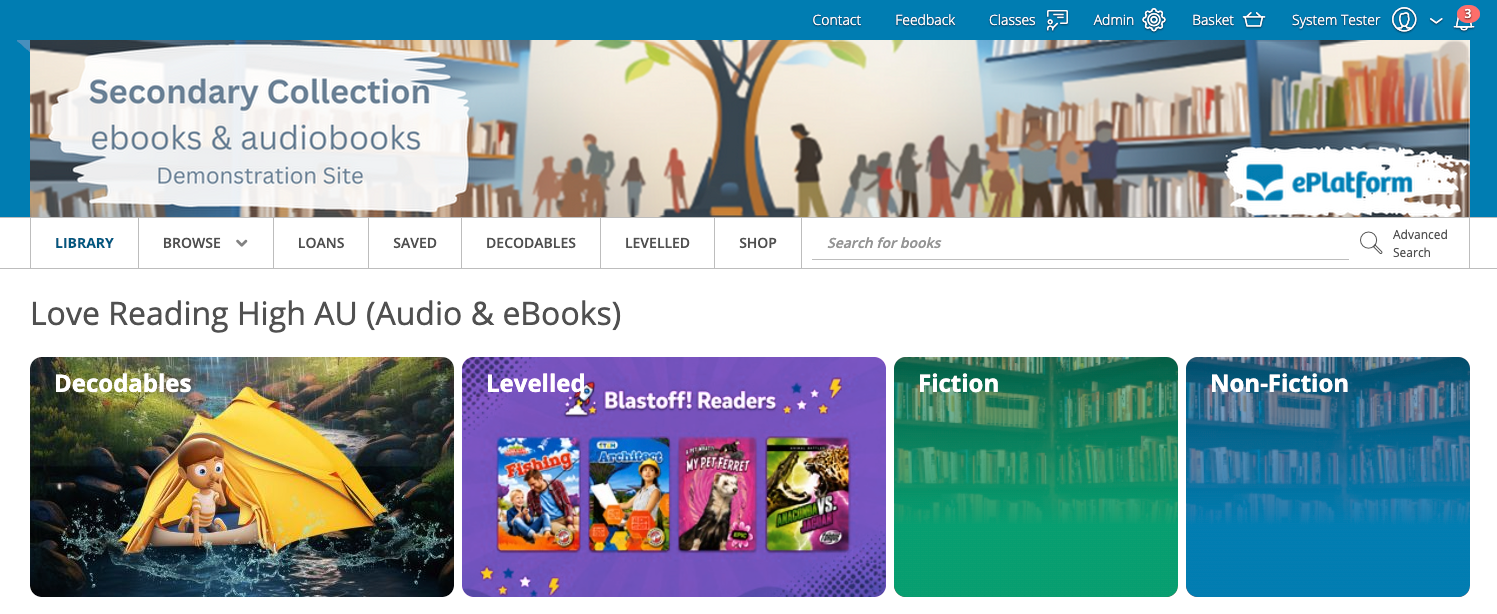
You can customise the tiles to make the most relevant collections easier for your readers to discover.
Open the collection tile settings
- Sign in to your library's ePlatform portal as an administrator.
- Open the Admin area.
- Find Customise Library Homepage & Compilation.
- Select Library Homepage & Compilation.
The complete navigation path is: Admin area → Customise Library Homepage & Compilation → Library Homepage & Compilation.
Choose which tiles are displayed
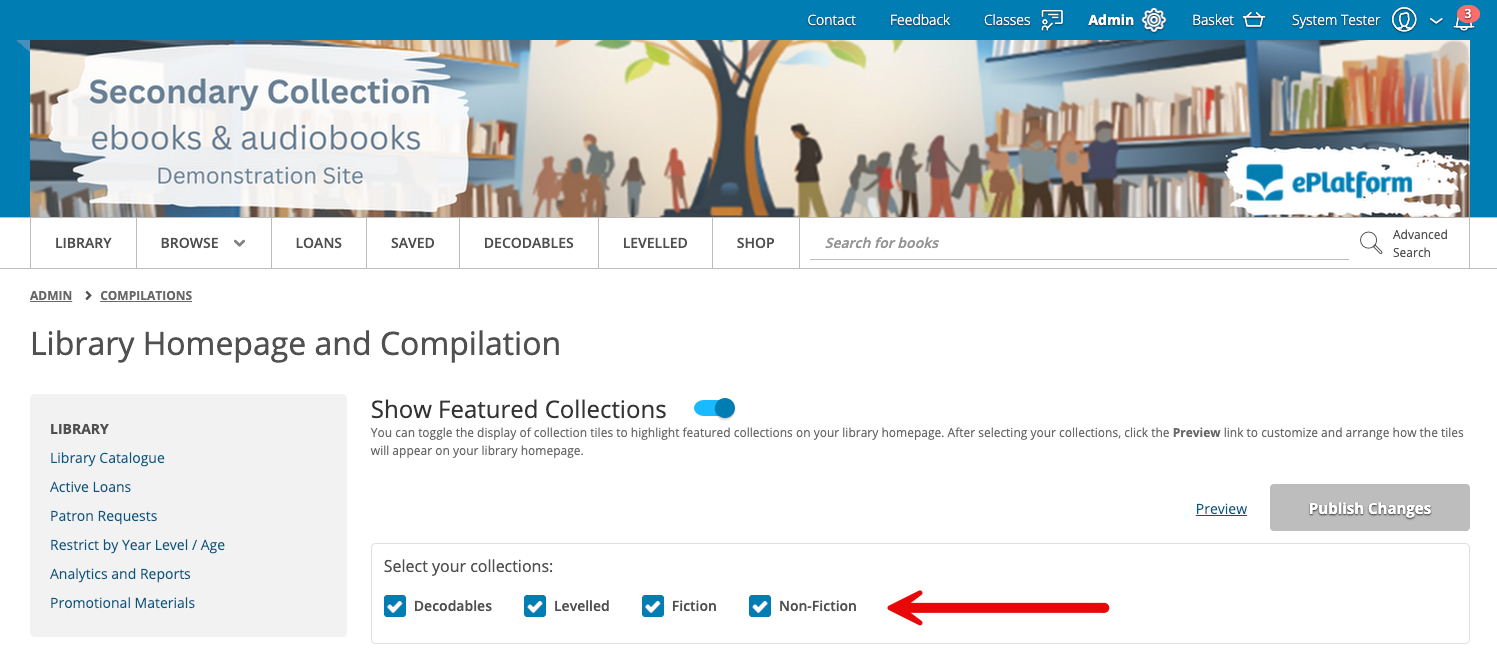
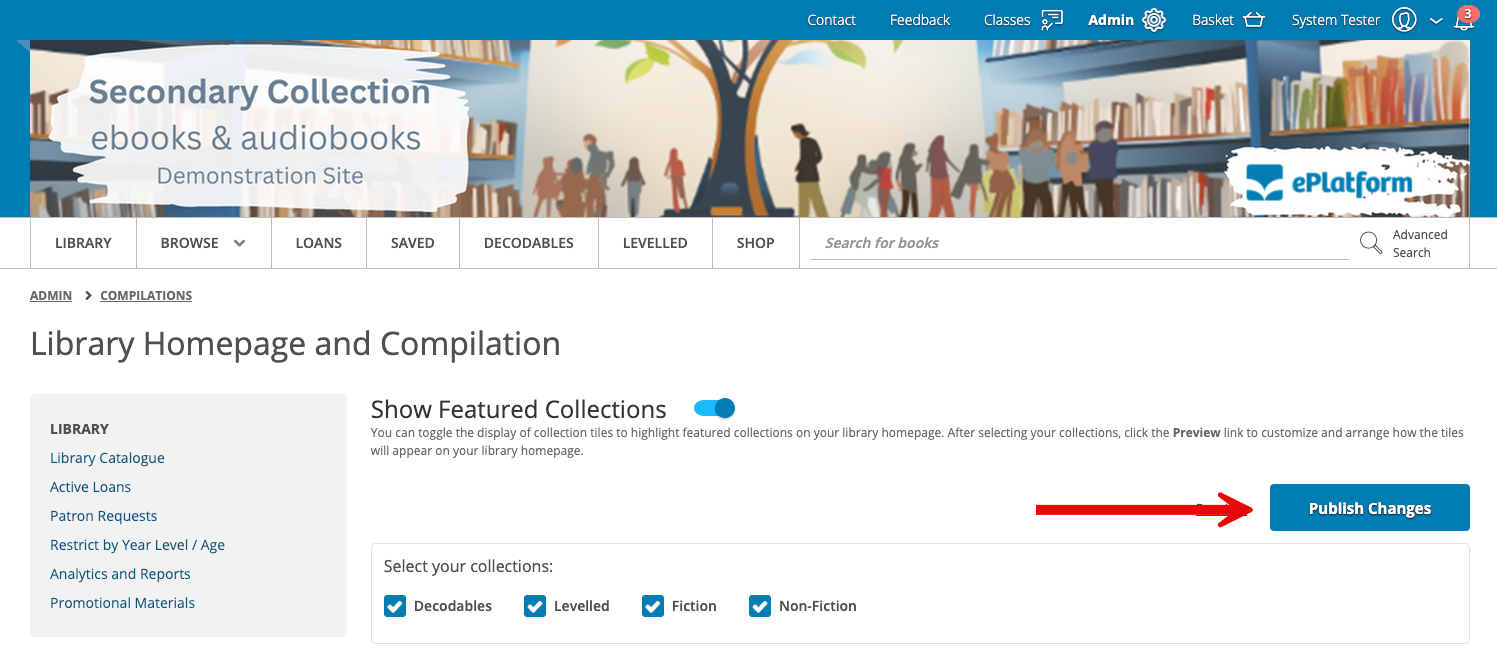
Use the tick boxes to choose which collection tiles will appear on the library homepage.
- Find the list of available collection tiles.
- Select the tick box for each tile you want to display.
- Clear the tick box for each tile you want to hide.
For example, a primary school may choose to highlight Decodables and Levelled Readers, while a secondary school may choose to hide collections intended for younger readers.
Select images for each tile
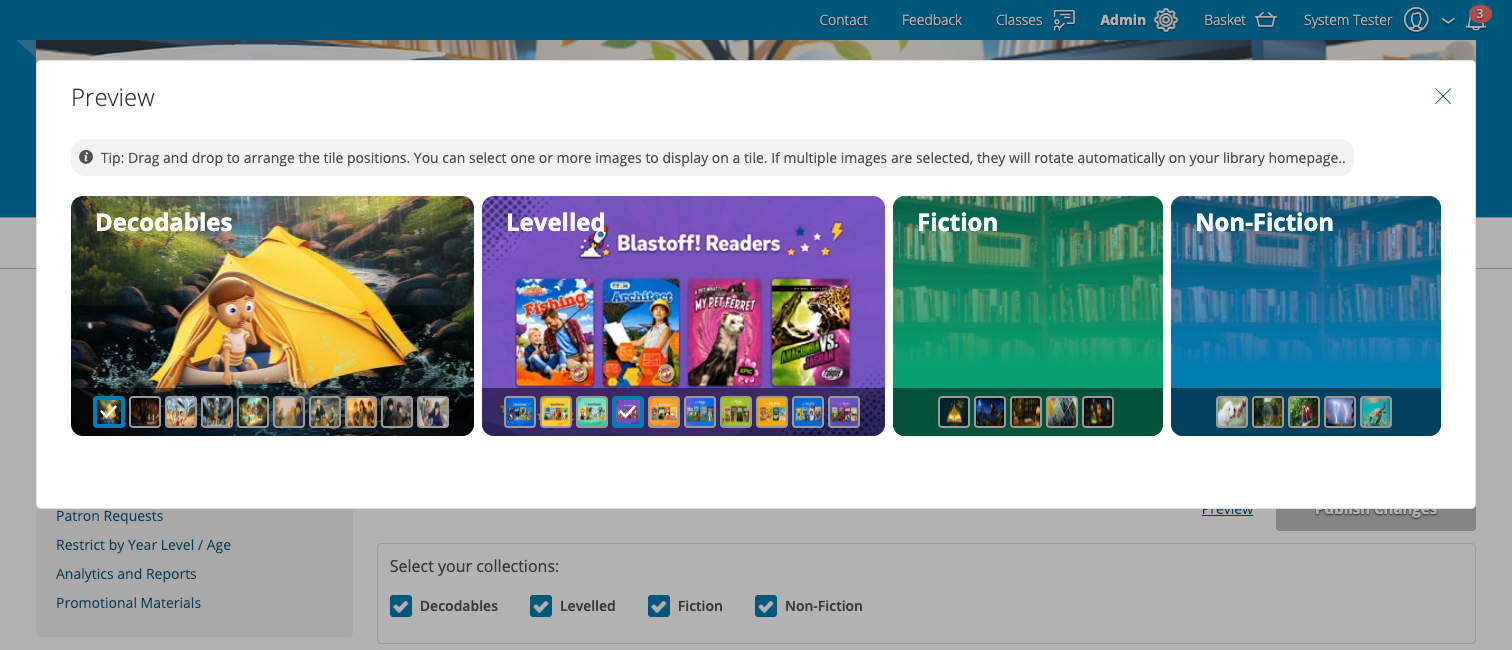
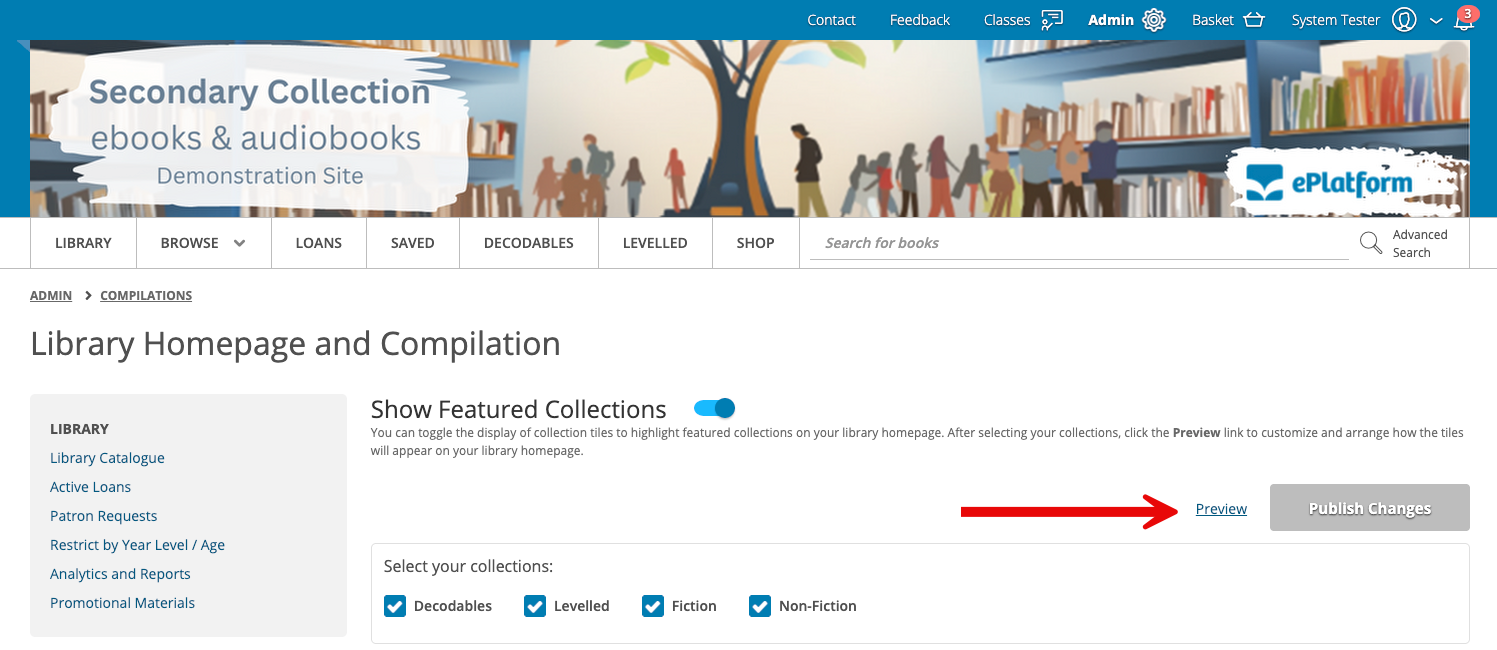
After choosing which tiles will be displayed, select Preview to customise their appearance.
- Select Preview.
- Find the collection tile you want to customise.
- Review the available image options for that tile.
- Select the image or images you want to use.
Rotate multiple images
You can select one or multiple images for a collection tile:
- If you select one image, that image will always be displayed for the tile.
- If you select multiple images, they will rotate when the homepage is loaded or refreshed.
Change the tile order
Use the preview to arrange the collection tiles in the order you want readers to see them.
- Select and hold the collection tile you want to move.
- Drag the tile to its new position.
- Release the tile when it is in the correct position.
- Repeat these steps for any other tiles you want to move.
Consider placing the collections most relevant to your readers near the beginning of the homepage.
Publish your changes
- Review which collection tiles are displayed.
- Check the selected images for each tile.
- Confirm that the tiles appear in the correct order.
- Select Publish Changes.
- Open the reader-facing homepage and review the published tiles.
Frequently asked questions
Can we choose which collection tiles appear?
Yes. Use the tick boxes under Library Homepage & Compilation to choose which tiles are displayed.
Can we change the image used for a collection tile?
Yes. Select Preview, then choose from the available images for that collection tile.
Can we select more than one image for a tile?
Yes. When multiple images are selected, they rotate as the homepage is loaded or refreshed.
Can we change the order of the collection tiles?
Yes. Drag and drop the tiles into the order you want, then select Publish Changes.
Can we upload our own collection tile images?
Custom image uploads are not currently available for collection tiles. Choose from the image options provided in the preview.
Who can update homepage collection tiles?
Users with the appropriate ePlatform administrator access can update and publish homepage collection tiles.